Background & Purpose
This guide explains how to securely add a client’s payment method to their sub-account in order to fund wallet balance, enable usage-based billing, and configure auto top-ups. Adding a card ensures uninterrupted service, simplifies rebilling for AI usage or phone charges, and allows agencies to automate client billing without manual intervention. This setup is essential for managing scalable, hands-off billing within each sub-account.
1. Locate the subaccount you want to add billing for
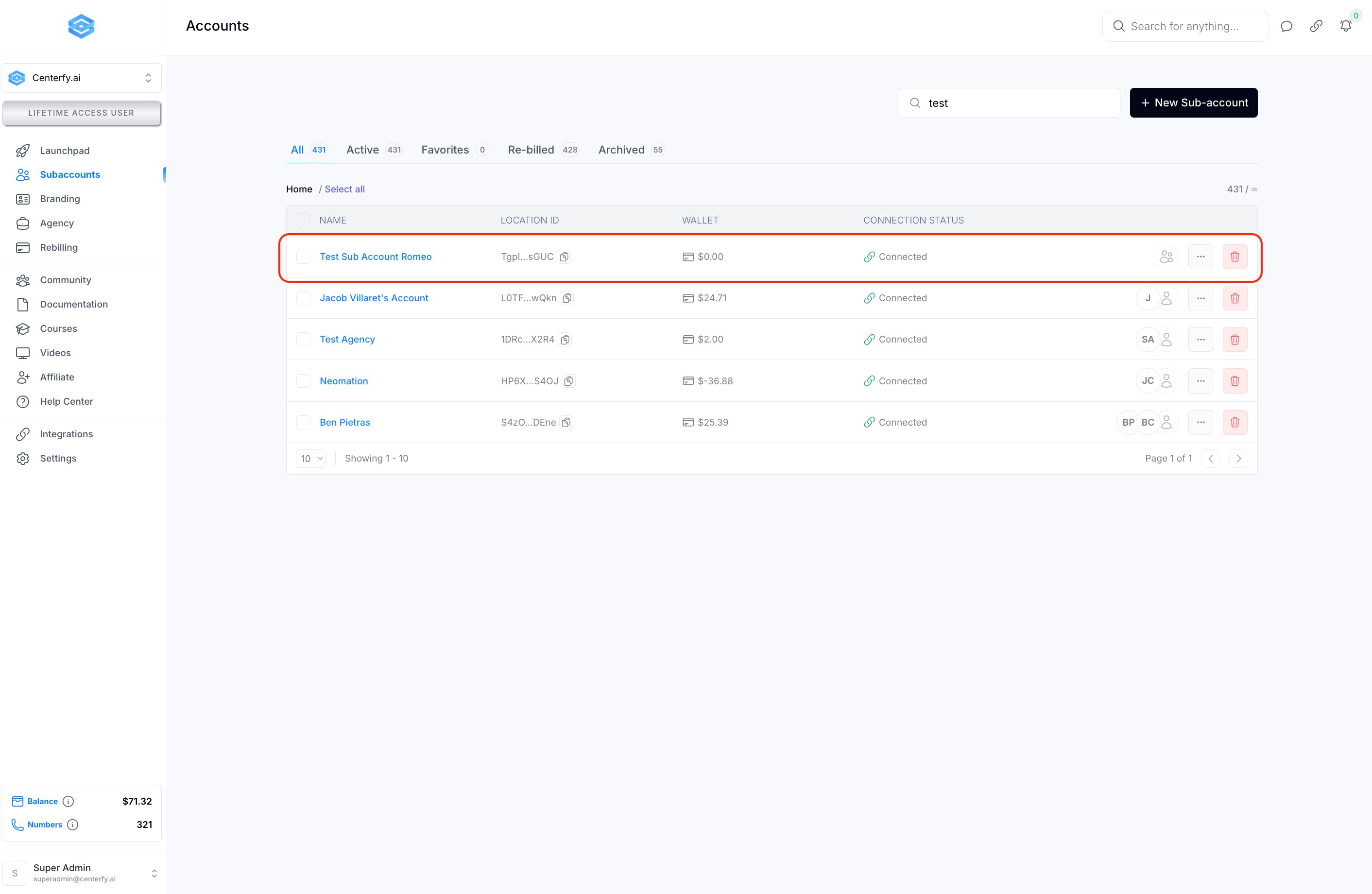
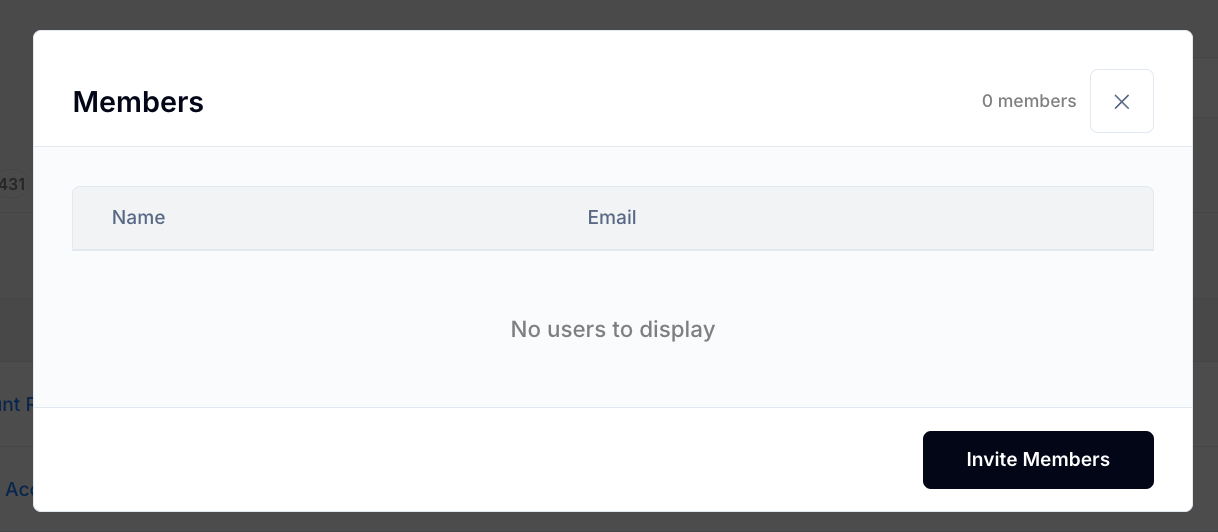
2.Ensure that you have added a billing admin, this can be either yourself or your client (or both).
2.1 Click the icon or access the “invite member” from the 3 dots dropdown.
Remember if there is no billing admin, the user will see a blank screen when attempting to access billing/balance tab.
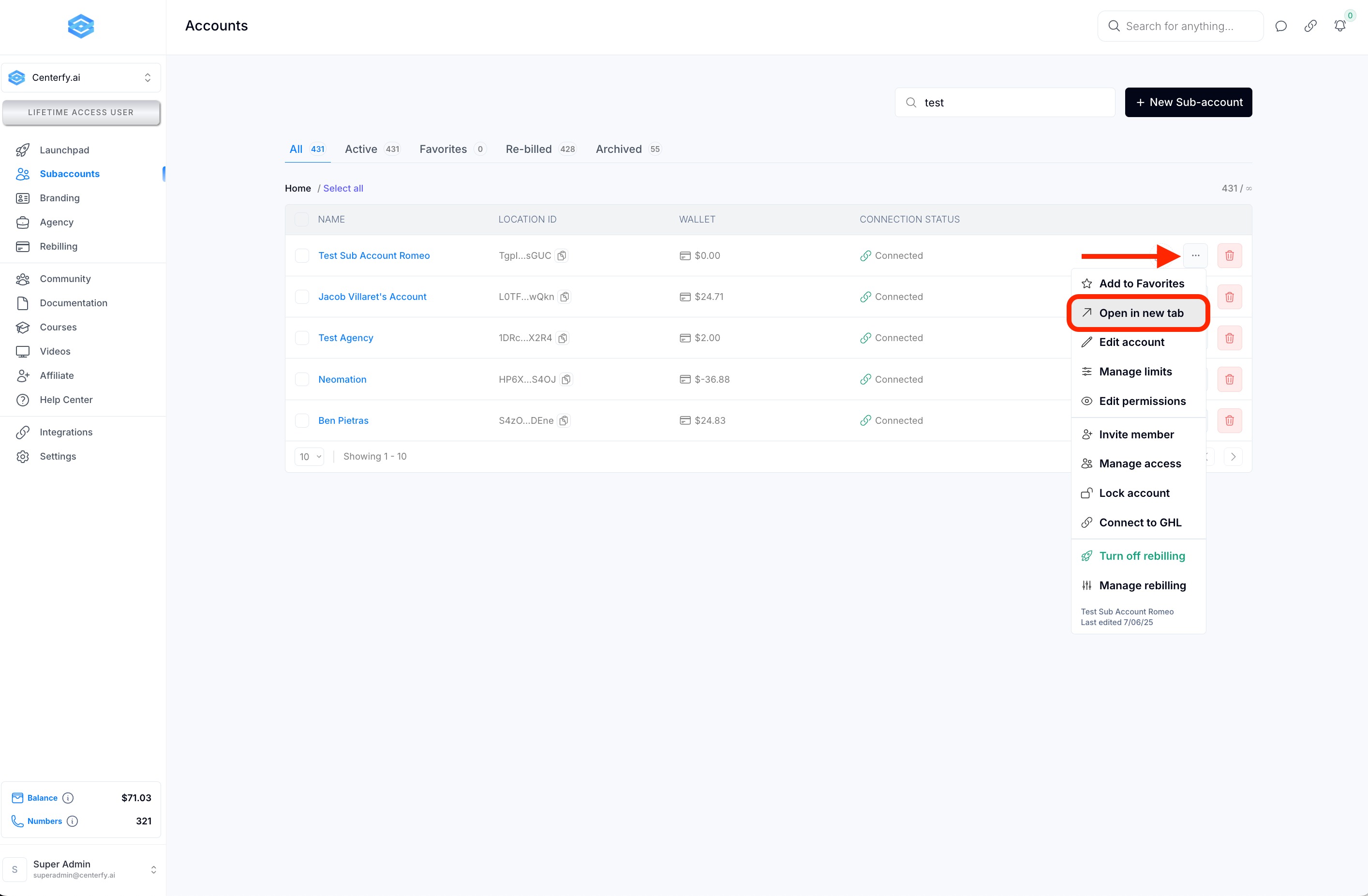
3. Once you have added a billing admin, access the subaccount by clicking the 3 dots, and then “open in new tab”
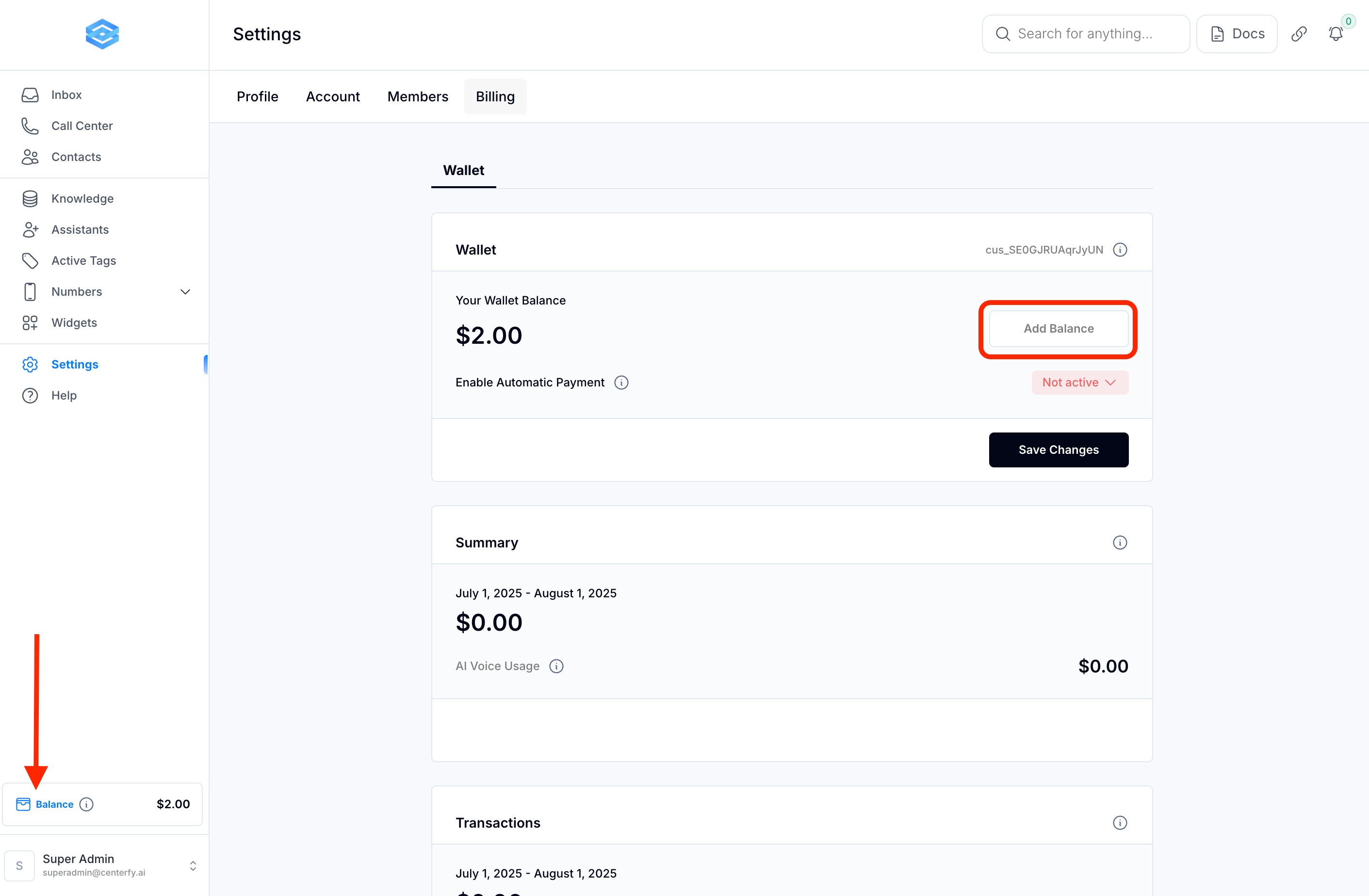
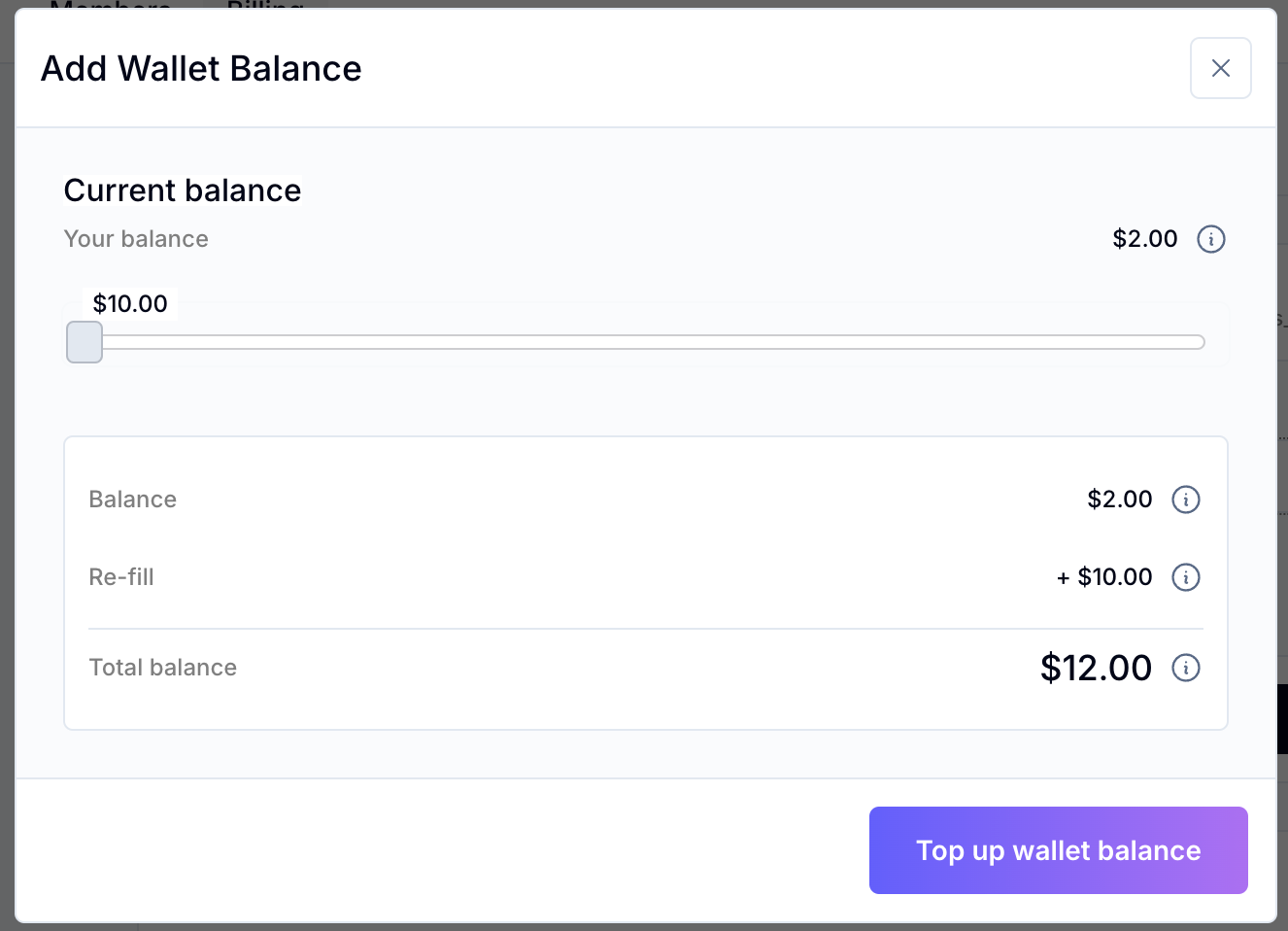
4. Once you are in the subaccount, click on “balance” and then “add Balance”
5. Select the amount and click “Top up wallet balance”
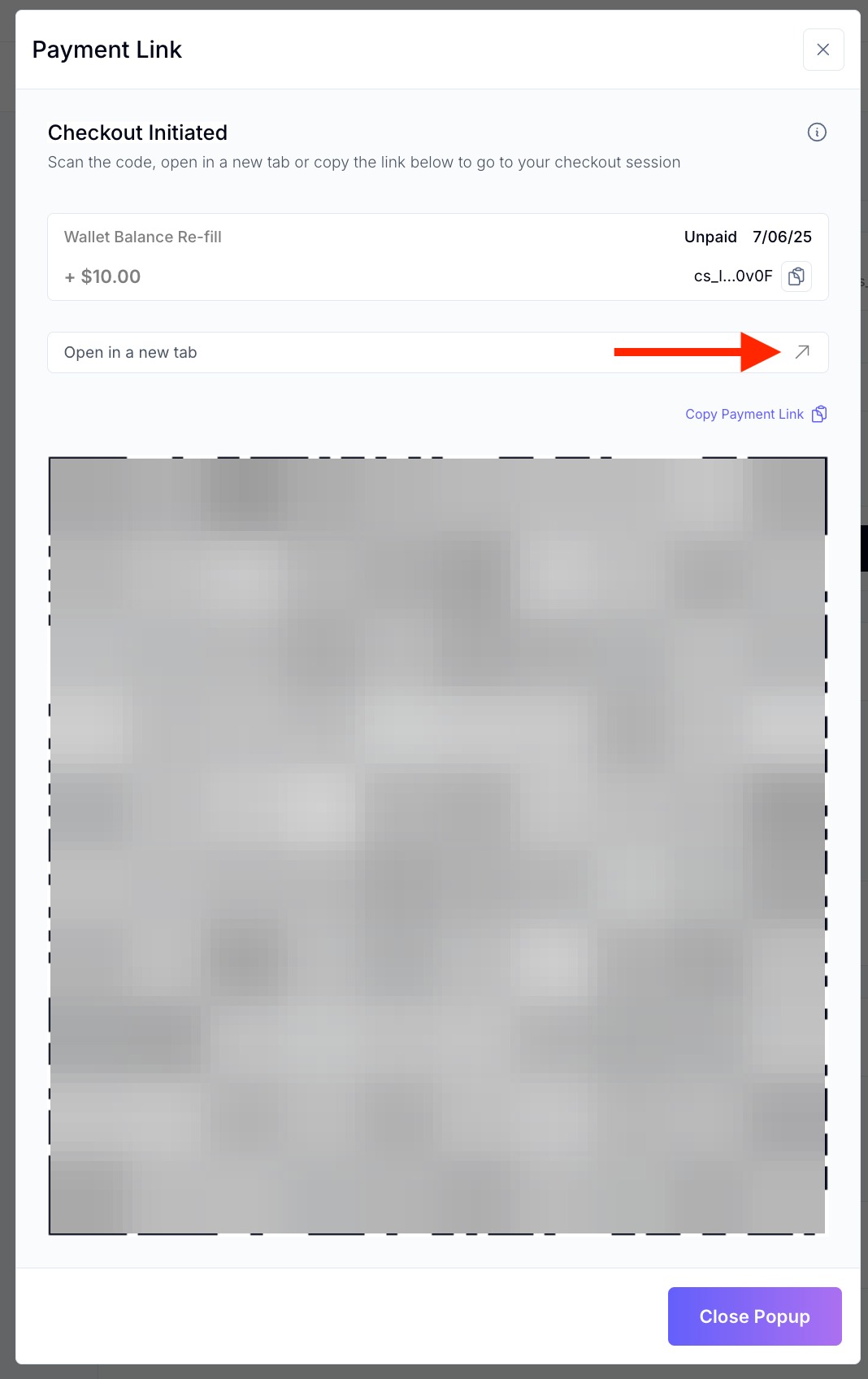
6. You can either get your client to scan the QR code on their phone, and checkout using stripe. Or you can open the link in a new tab.
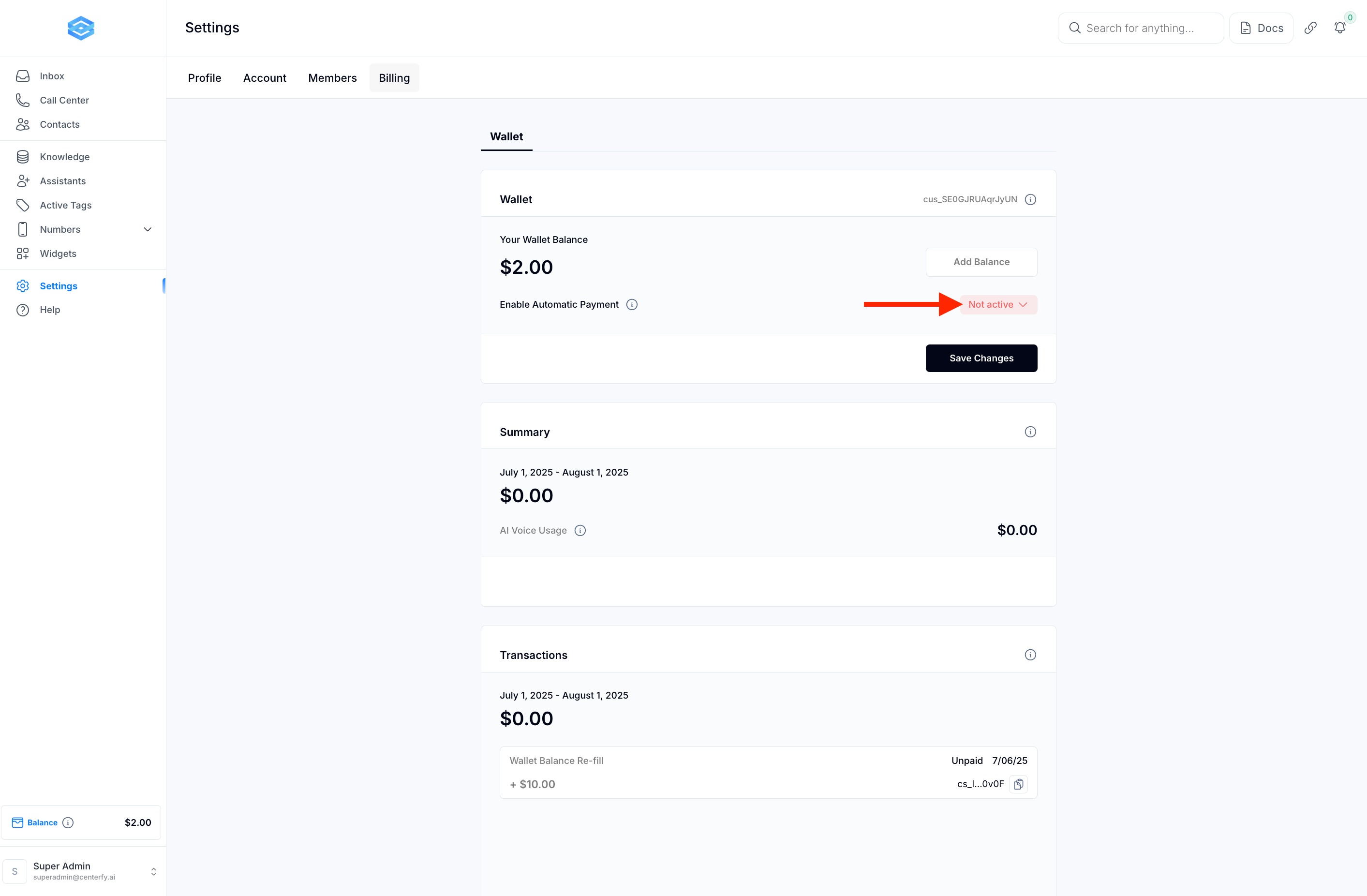
7. Once done, click “Not active” to enable auto-pay. This will ensure that you will not run out of credit which will cause the System to stop working.
8. You will see the same QR Code pop, repeat the process to enable auto pay.
FAQs
Q1: Why can’t my client see the billing or wallet setup options?
A: The client must first be invited as a member to their sub-account workspace. Without this access, the billing and wallet menus will not be visible.
Q2: How do I invite my client to their sub-account?
A: Go to your Agency Workspace, locate the sub-account, click the three-dot menu, and select "Invite Member." Enter the client’s email to send the invitation.
Q3: What happens after I invite the client?
A: Once the client accepts the invite, they’ll gain access to additional menu options inside their workspace, including billing and wallet setup.
Q4: Can clients allow someone else (e.g., their team) to manage billing?
A: Yes. Anyone who needs access to billing must also be invited as a member to the sub-account workspace.
Q5: What happens if no billing admin is assigned?
A: If no billing admin is added to the sub-account, users will see a blank screen when trying to access the billing or balance tab. You must assign at least one authorized user to access billing.
Q6: Can both the agency and the client be billing admins?
A: Yes. You can assign yourself, your client, or both as billing admins. This provides flexibility in who can manage payments and balances.
Q7: What is auto-pay and why is it important?
A: Auto-pay automatically tops up the wallet when the balance runs low. Enabling this prevents service interruptions caused by insufficient credit.
Q8: How does the payment process work with the QR code?
A: The client can scan the QR code with their phone to pay via Stripe. Alternatively, you can open the link in a new tab to complete the payment manually.
Q9: Will the system notify me if the balance is low?
A: No, there are no email alerts for low balance. This is why enabling auto-pay is strongly recommended to prevent service disruption.
Q10: Can I manually top up the balance even with auto-pay enabled?
A: Yes. Manual top-ups are still available at any time, even if auto-pay is active.
Q11: Is the payment method stored for future use?
A: Yes. Once added, the payment method is saved securely and used for both manual and automatic top-ups.