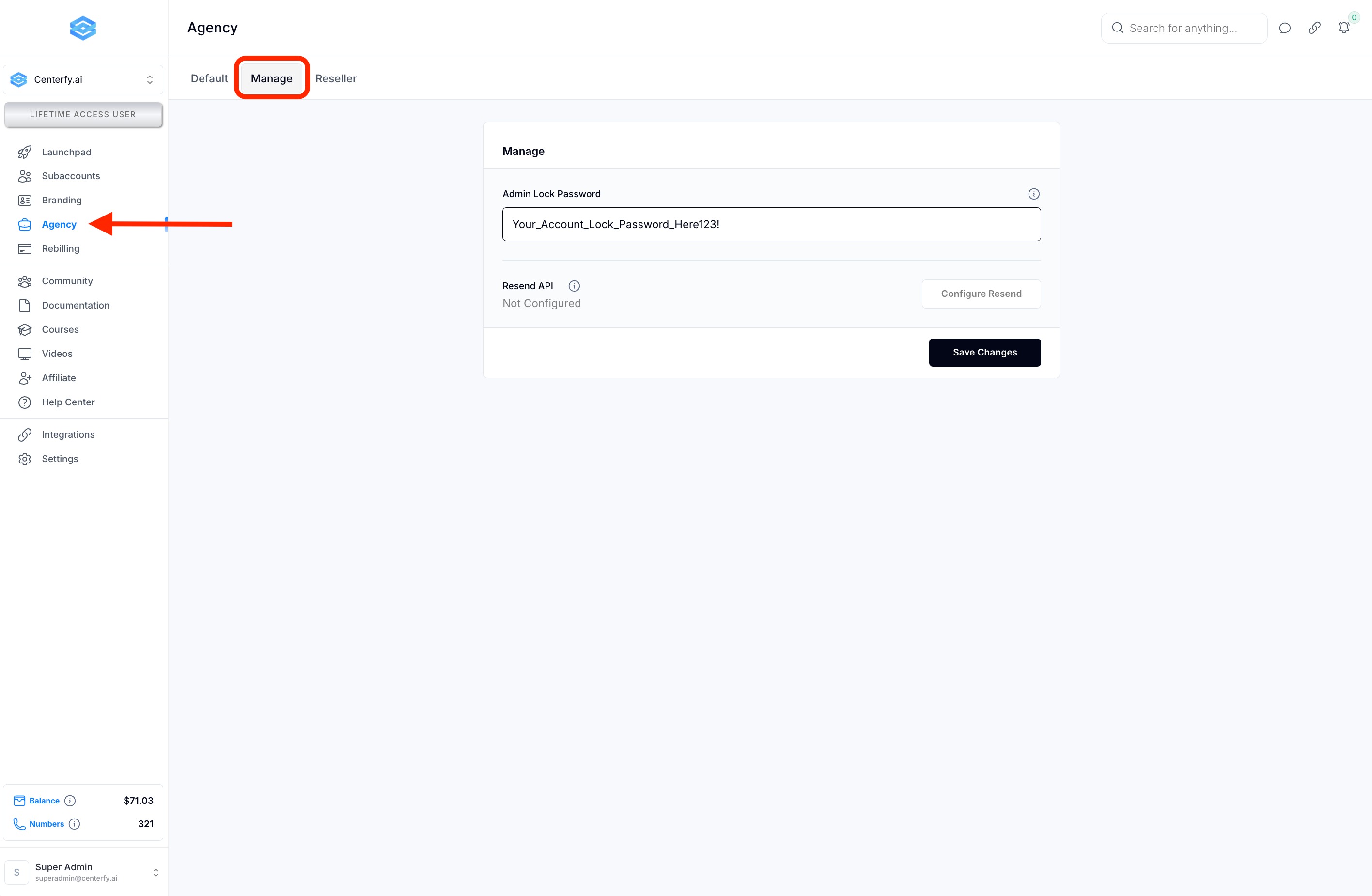
1. First we will want to create an admin Lock Password.
1.1 Navigate to Agency > Manage and select a password.
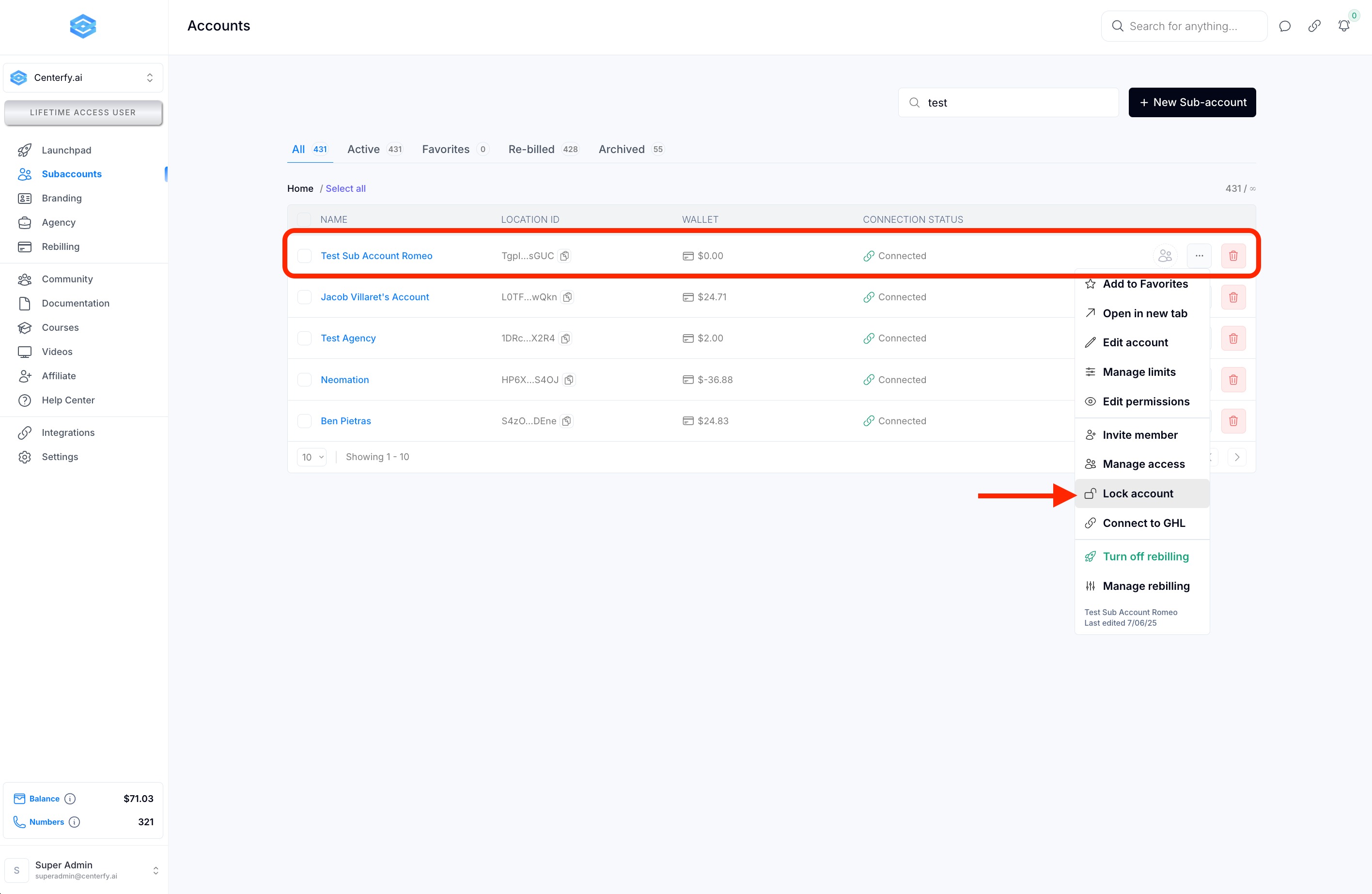
1.2 Locate the Subaccount you want to restrict and click “Lock Account”
FAQs
Q1: What happens when a subaccount is locked?
A: The user will see a locked screen and will not be able to access the subaccount unless they enter the correct admin password.
Q2: Can clients bypass the admin lock using browser tools (like Inspect Element or F12)?
A: No. The lock screen cannot be bypassed via source code or browser inspection. Access is fully restricted without the password.
Q3: Can I unlock the subaccount later?
A: Yes. Simply visit the subaccount, enter the admin password, and the account will unlock.
Q4: Do users get notified when their subaccount is locked?
A: No email or system notification is sent. However, they will see the lock screen when they attempt to log in.
Q5: Can I use the same admin lock password for multiple subaccounts?
A: Yes. The admin lock password is set at the agency level and can be used across any subaccounts you choose to restrict.
Q6: Is the lock permanent?
A: No. You can unlock the account at any time by entering the admin password, or by removing the lock through the agency dashboard.