The custom menu link we setup in your GHL Agency will automatically create new subaccounts if the custom menu is accessed within a sub account inside GHL. To manually add a new client follow the below instructions.
1. Log in to your Workspace: agents.centerfy.ai/portal
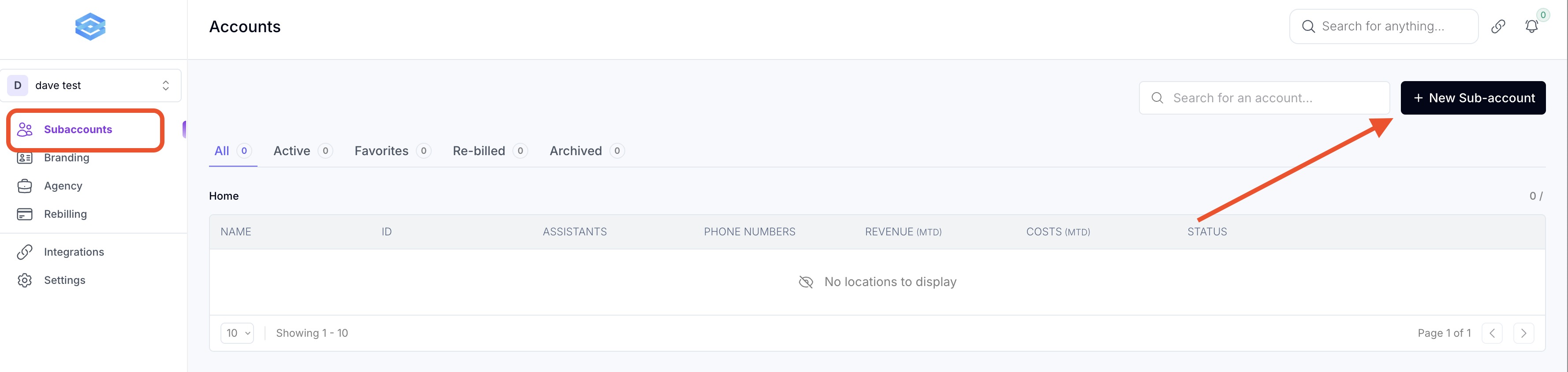
2. Click Subaccounts > New Sub-account
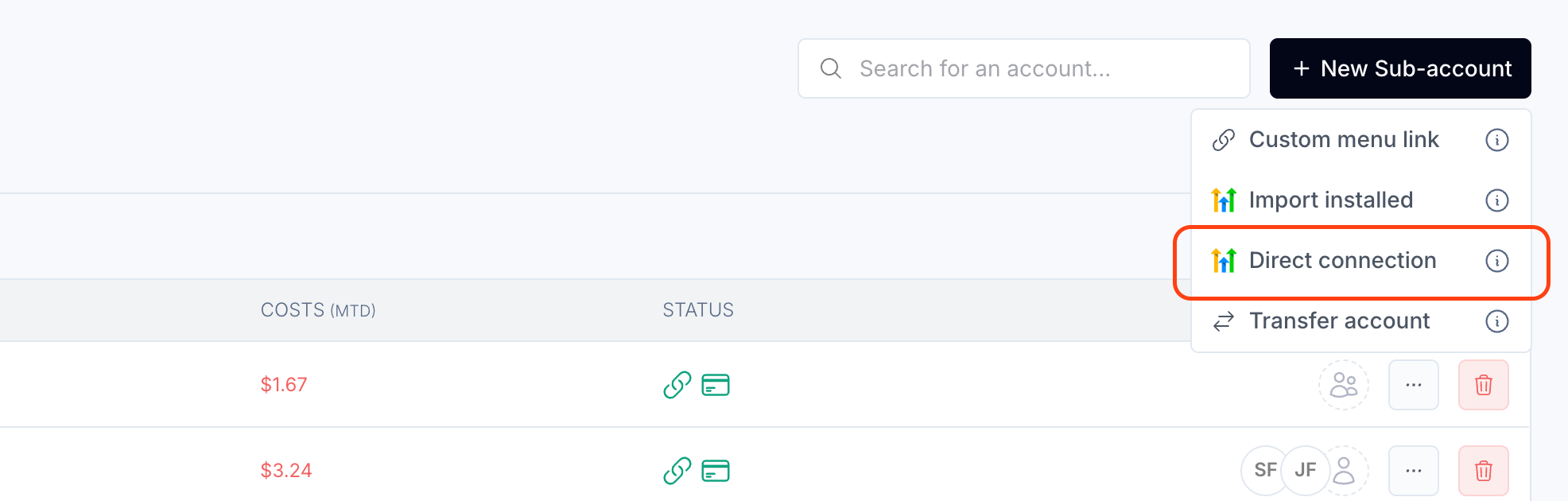
3.1 Select "Direct Connection"
(Make sure that you are logged into the right HighLevel Account - Your Agency)
You will see a page to install the app into the subaccount scroll to the bottom and click NEXT.
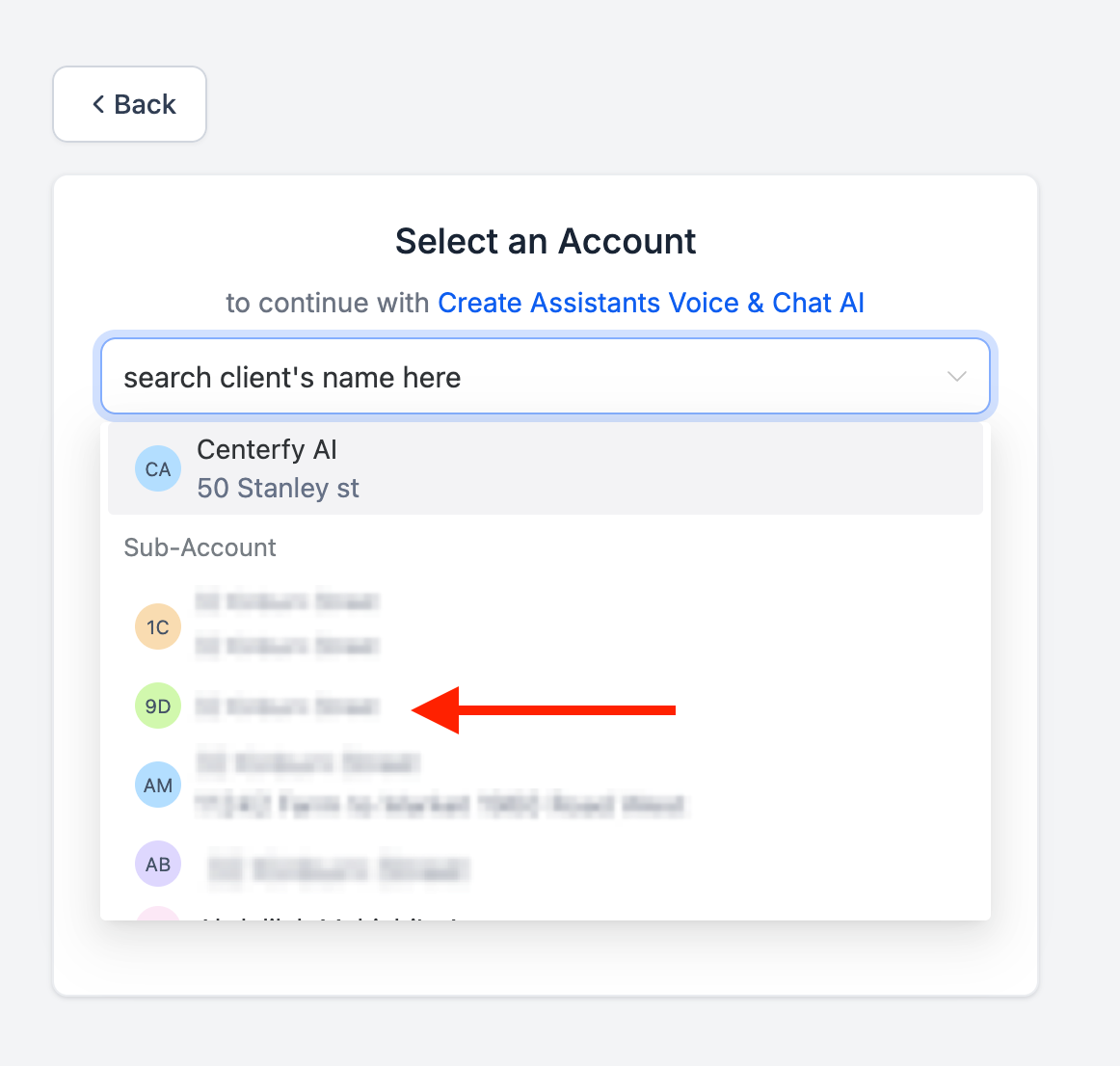
3.2 Select the subaccount you would like to install the AI Agents to:
You should now see the subaccount added to the workspace.
4. Next we need to invite users to manage the billing inside the subaccount.
(You can just invite yourself if you have access to your clients payment info. Users that are not added to the subaccount will see a blank page when trying to update payment method and will not be able to access the billing page)
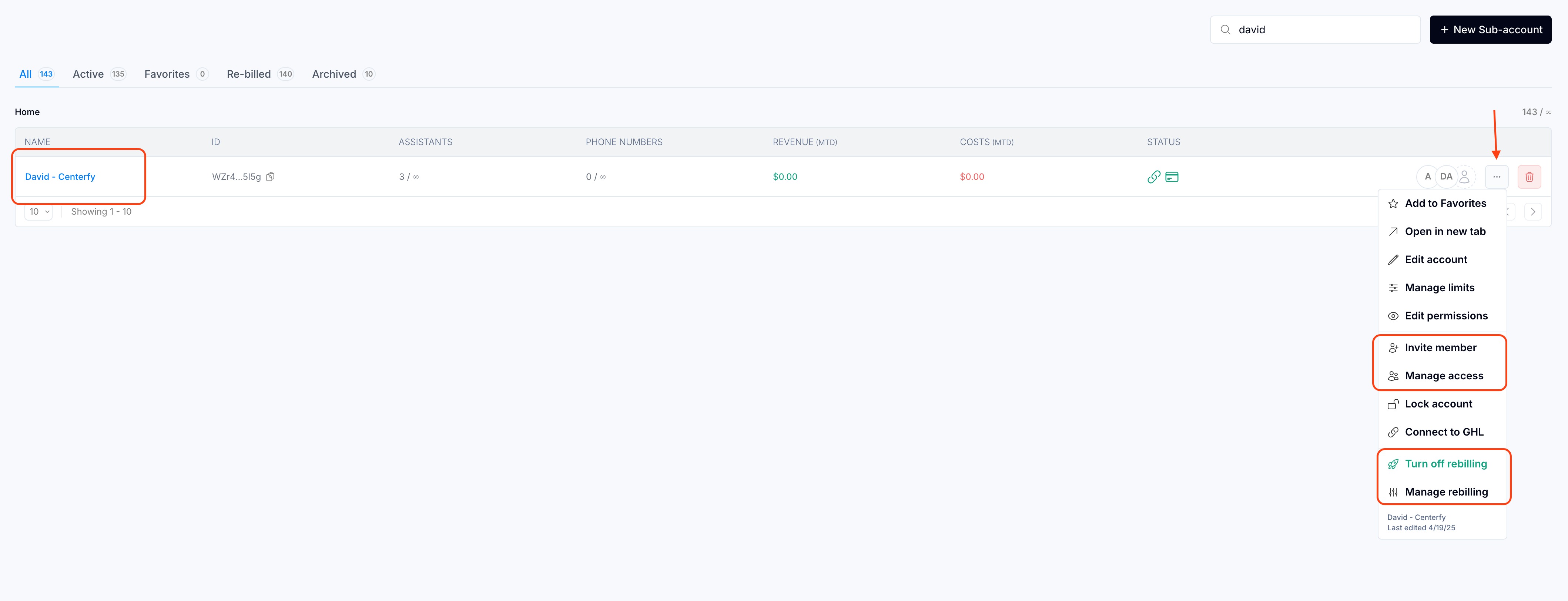
In your agency workspace click on the 3-dots next to the subaccount
Invite the client by adding their email address by either clicking invite member or manage access, this will allow them access to add a payment method and access the billing page.