Access your Agency Workspace: agents.centerfy.ai/portal
Step 1:
Click “Integrations” and click to connect GoHighlevel
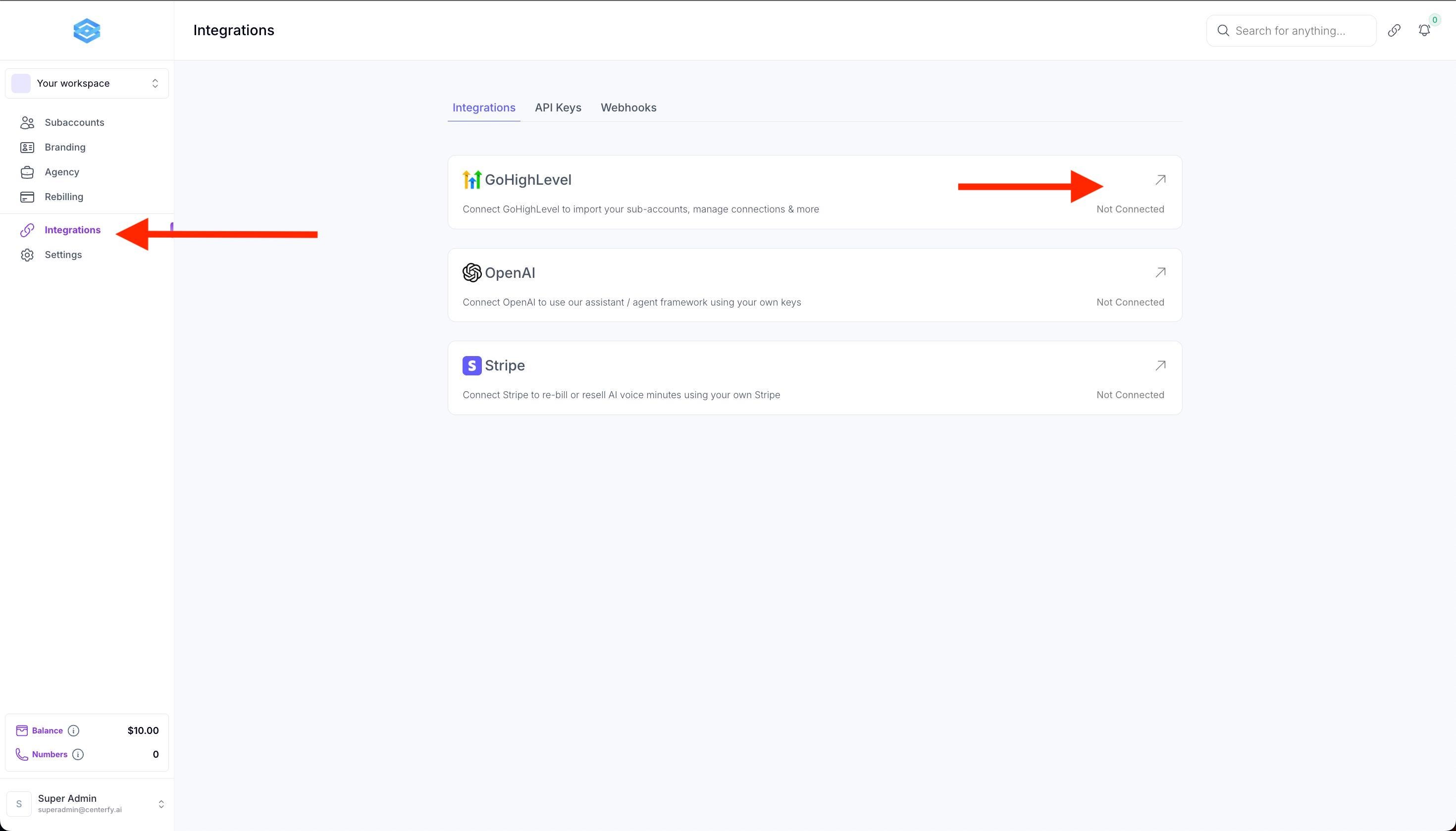
1.1 Follow the prompts to install the app
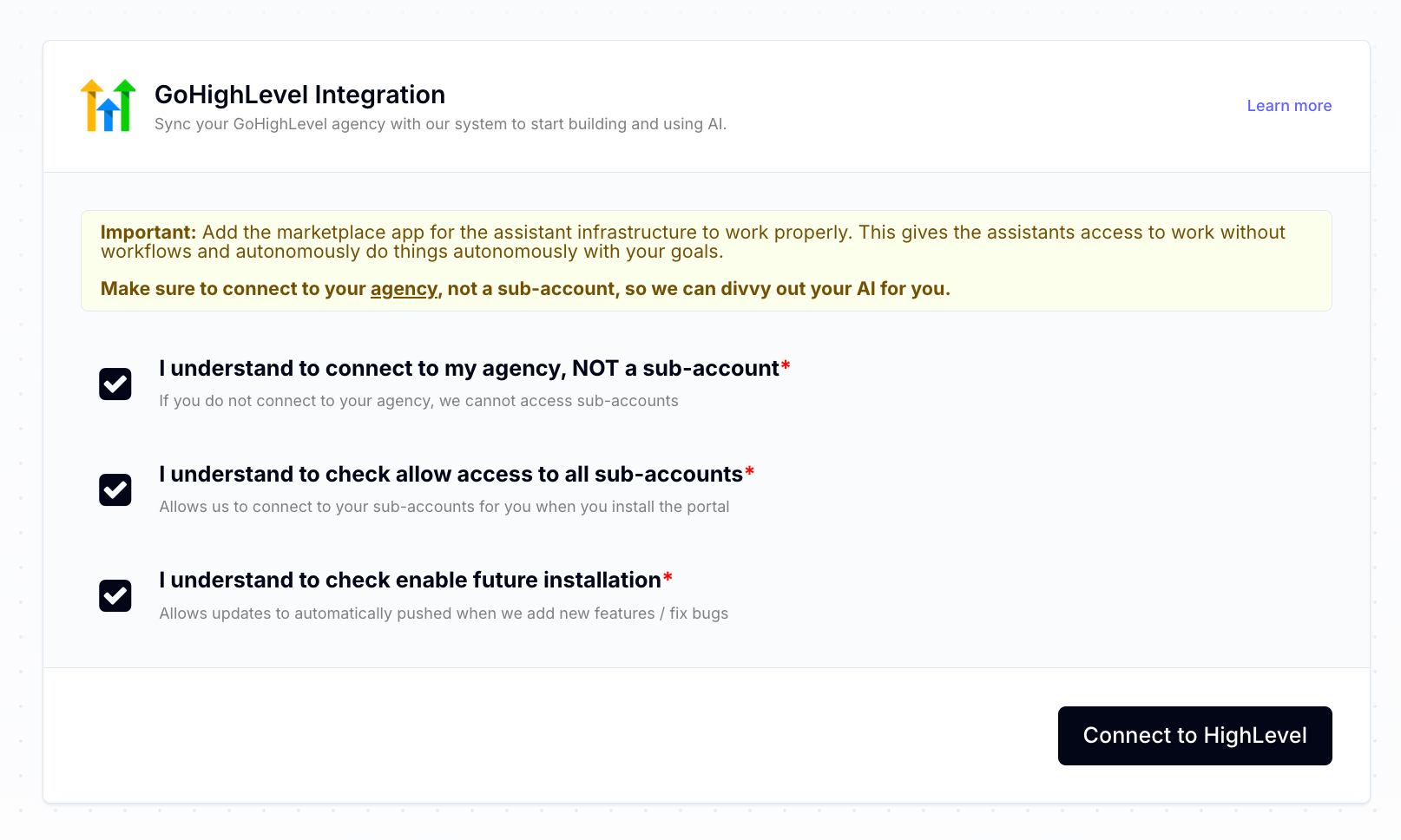
1.2 Ensure to select the AGENCY not a subaccount
1.3 Click the Workspace ID there should only be 1
1.4 Once done you should see that your oAuth Connection was successful.
Step 2: Next we will create a custom menu link inside your GHL Agency.
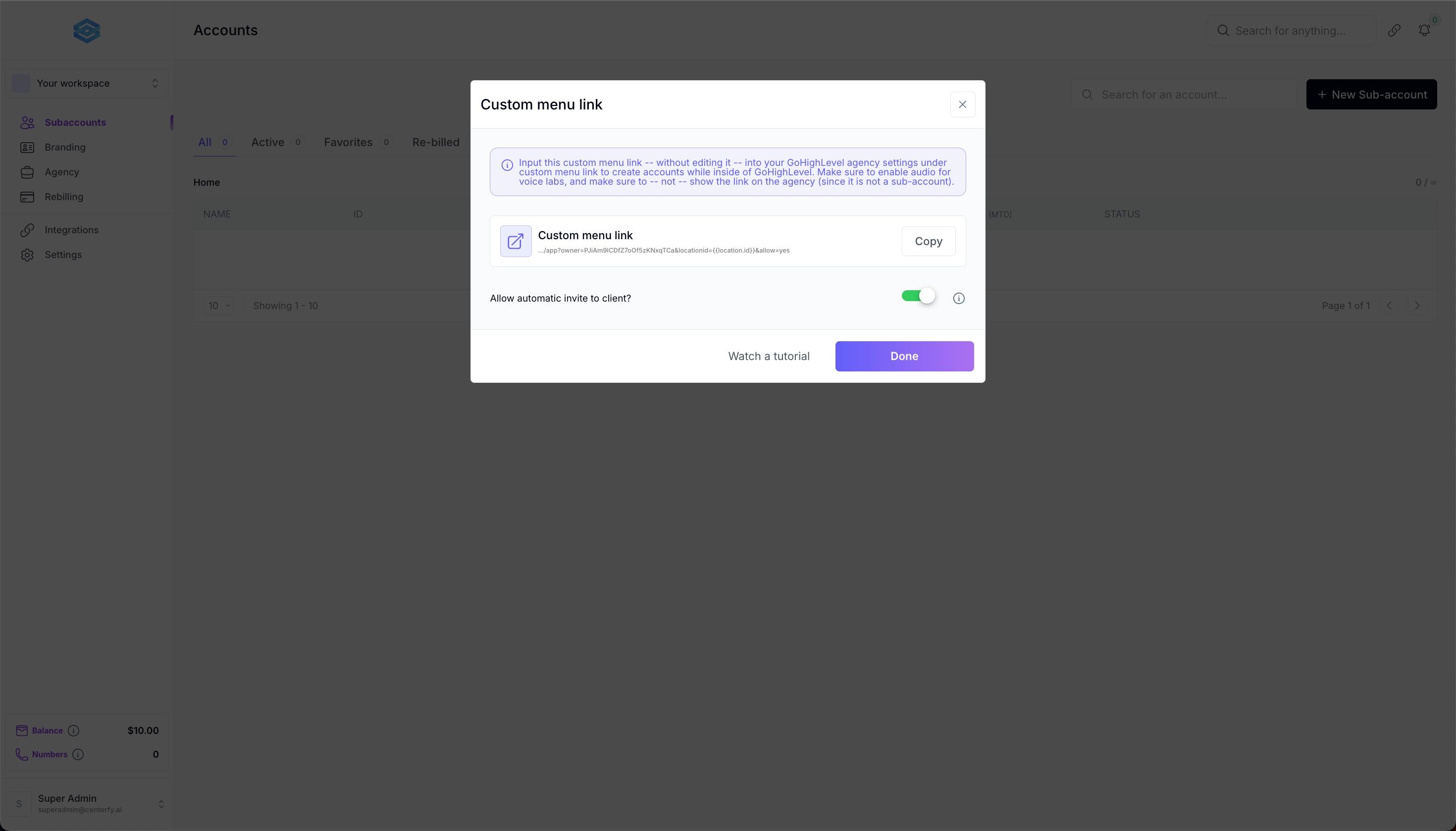
Go to Subaccounts then click on "+New Sub-account" then Custom Menu Link.
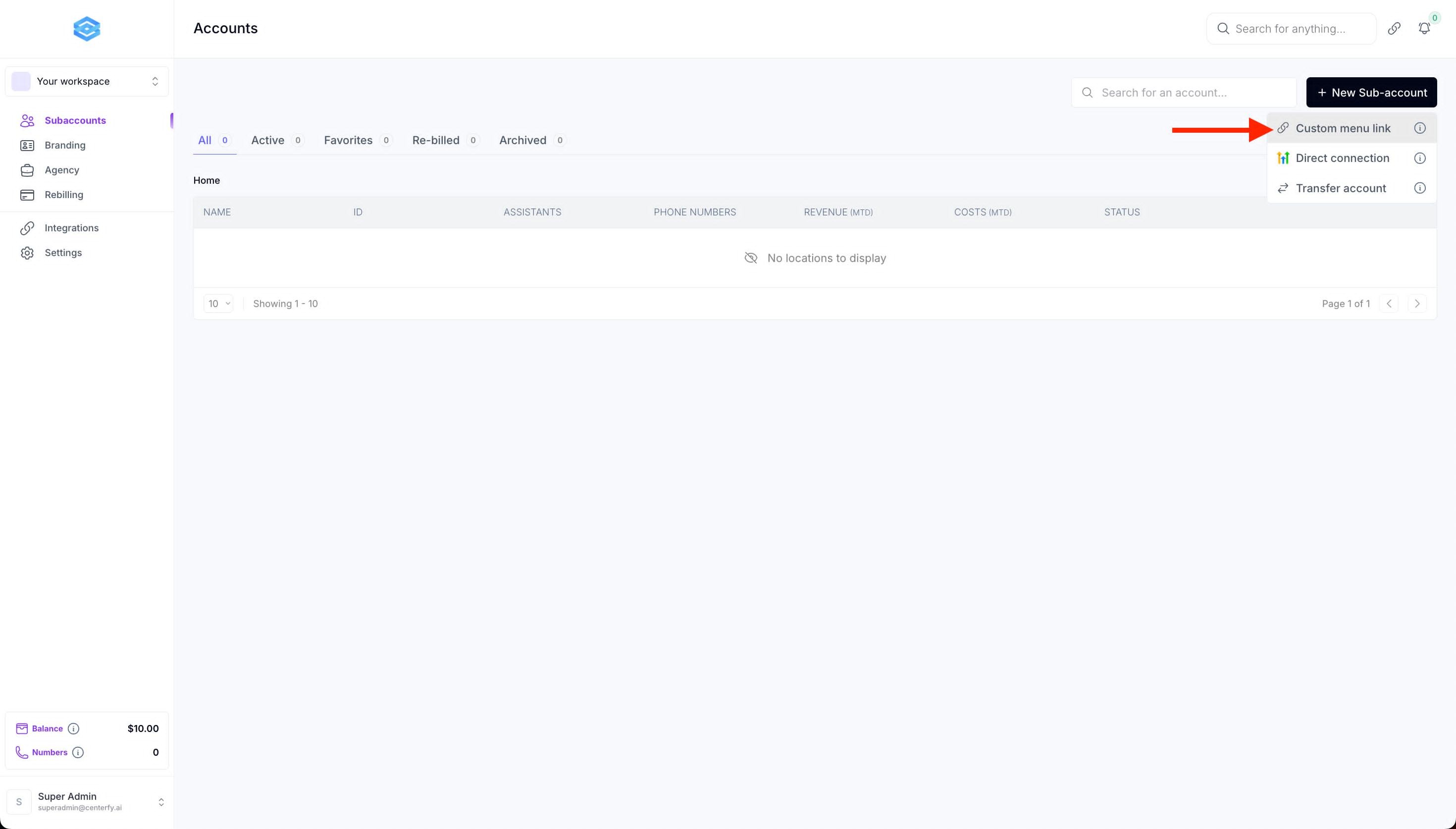
2.1 Make sure to turn on "allow automatic invite to client"
2.2 Copy Custom menu link
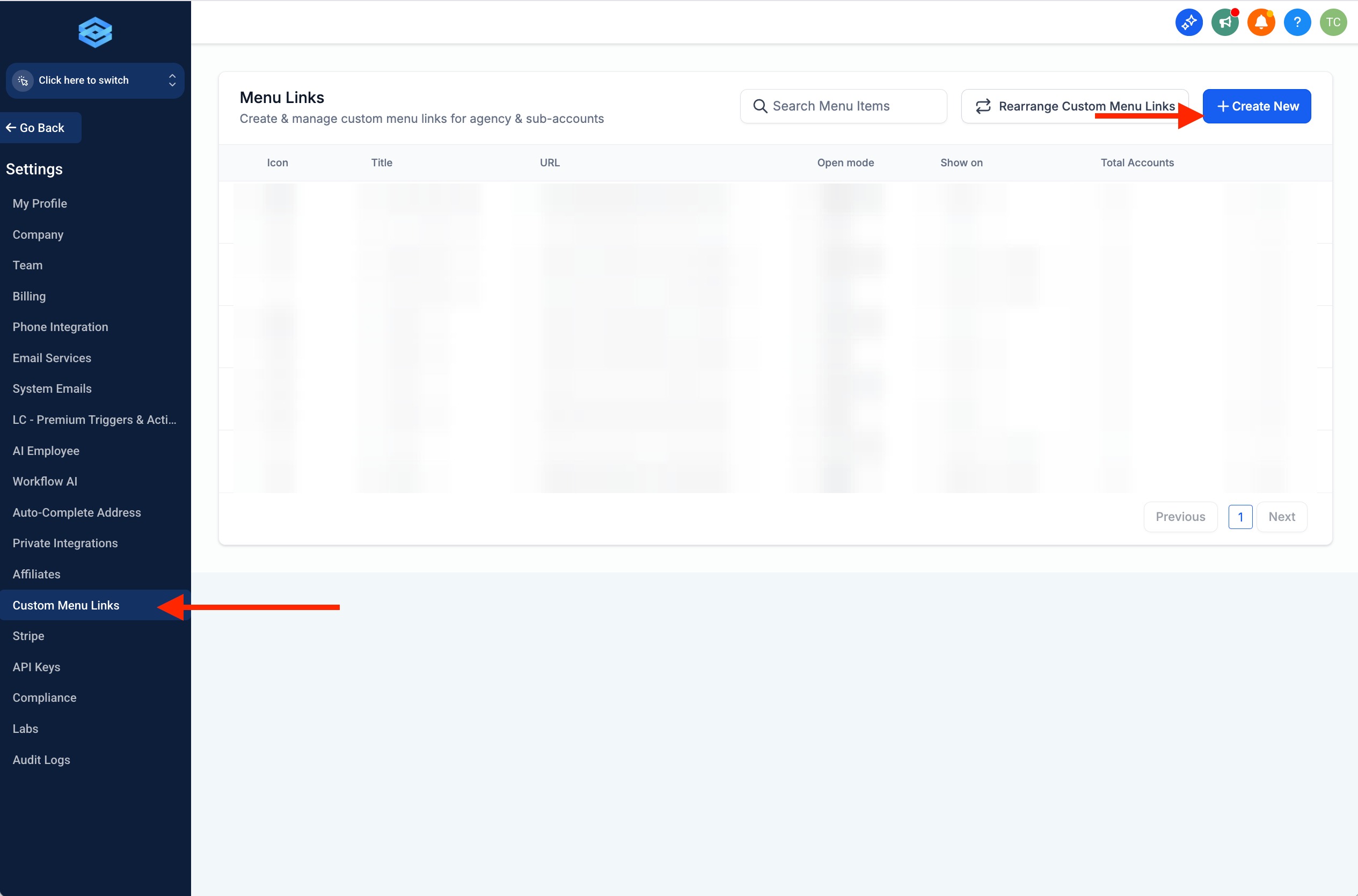
2.3 Inside your GHL Agency View > settings > “Custom Menu Links section” click + Create New
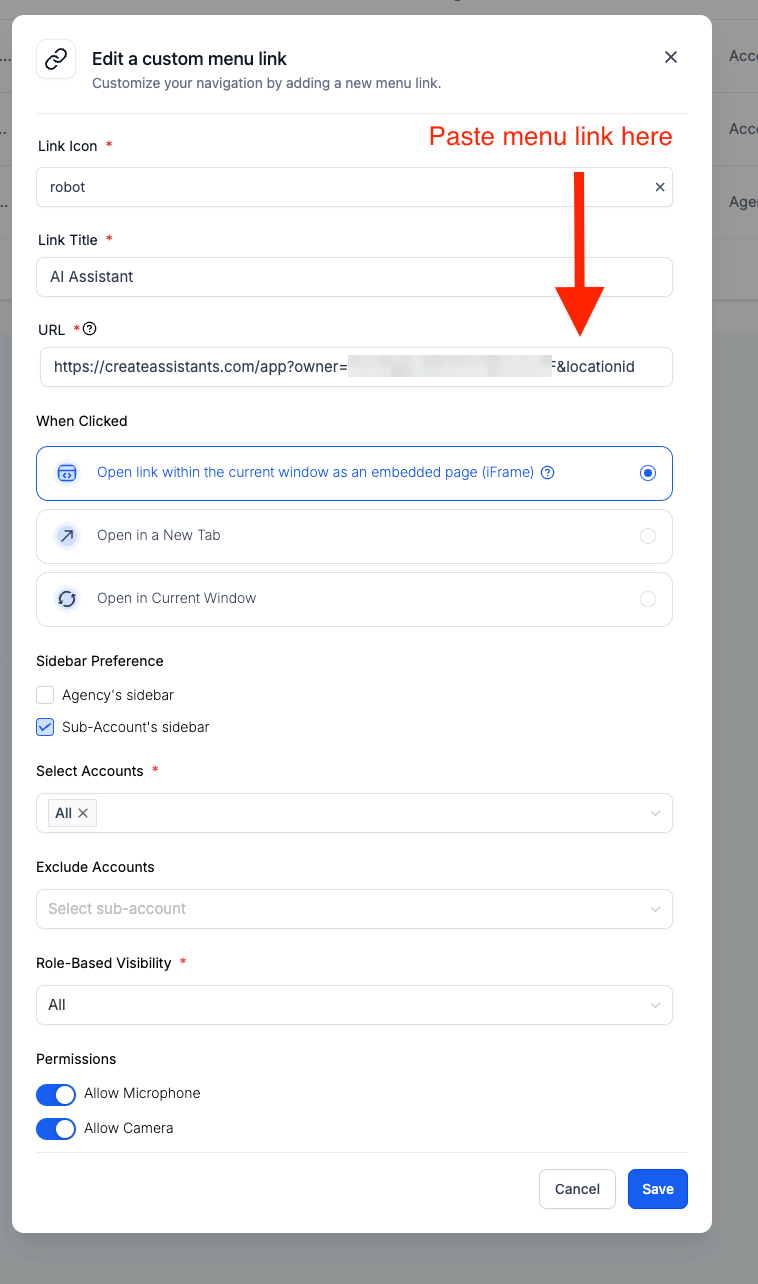
2.4 Paste the menu link you copied in step 2.2
Step 3: Next we will complete the remaining OpenAI & Stripe Integrations:
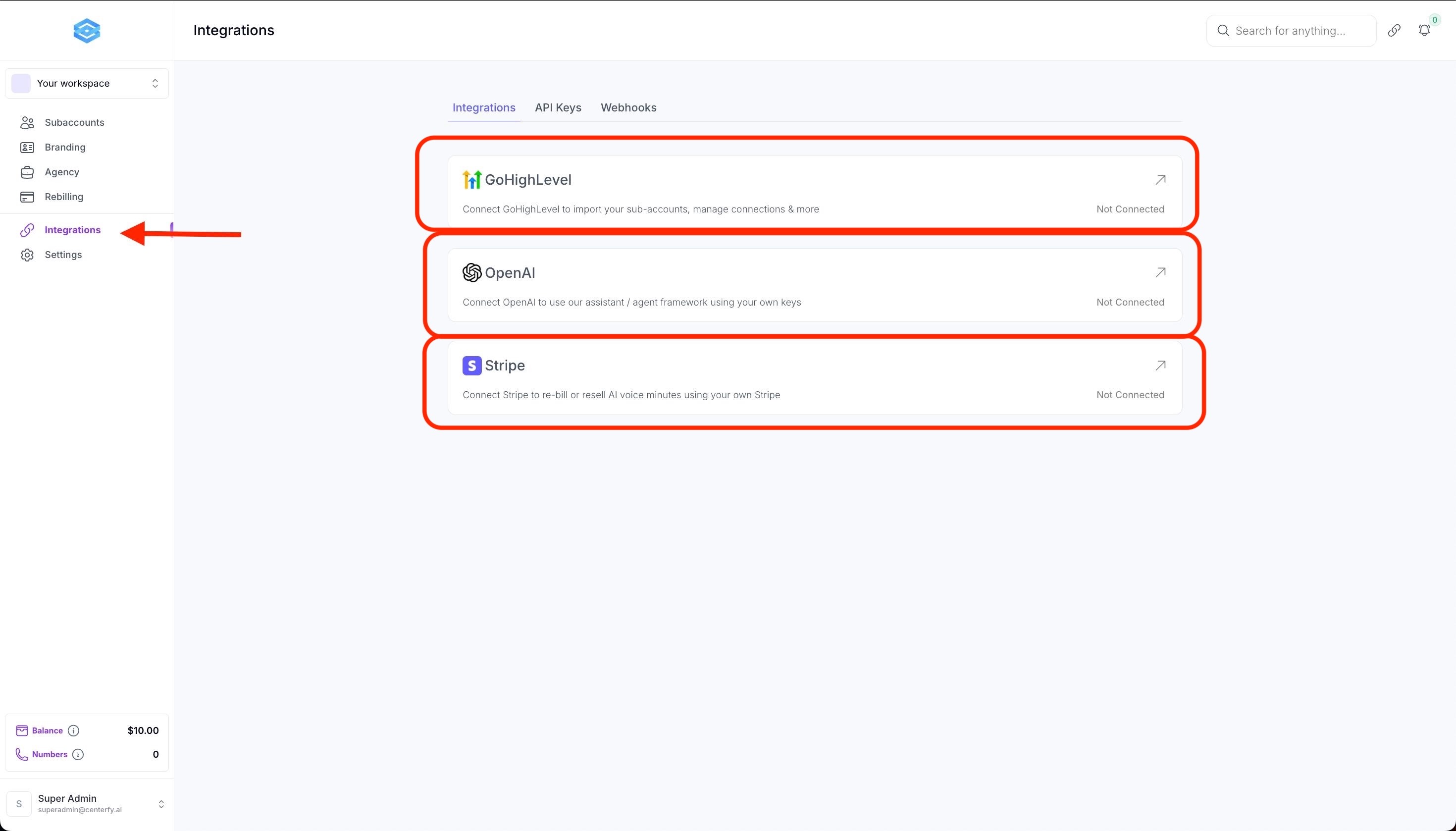
3.1 Connect OpenAI via API
Create a new API in your Open AI account here: https://auth.openai.com/log-in
Make sure you have balance in your OpenAI account otherwise when attempting to save your API inside the Centerfy Workspace you will get error “too many requests”.
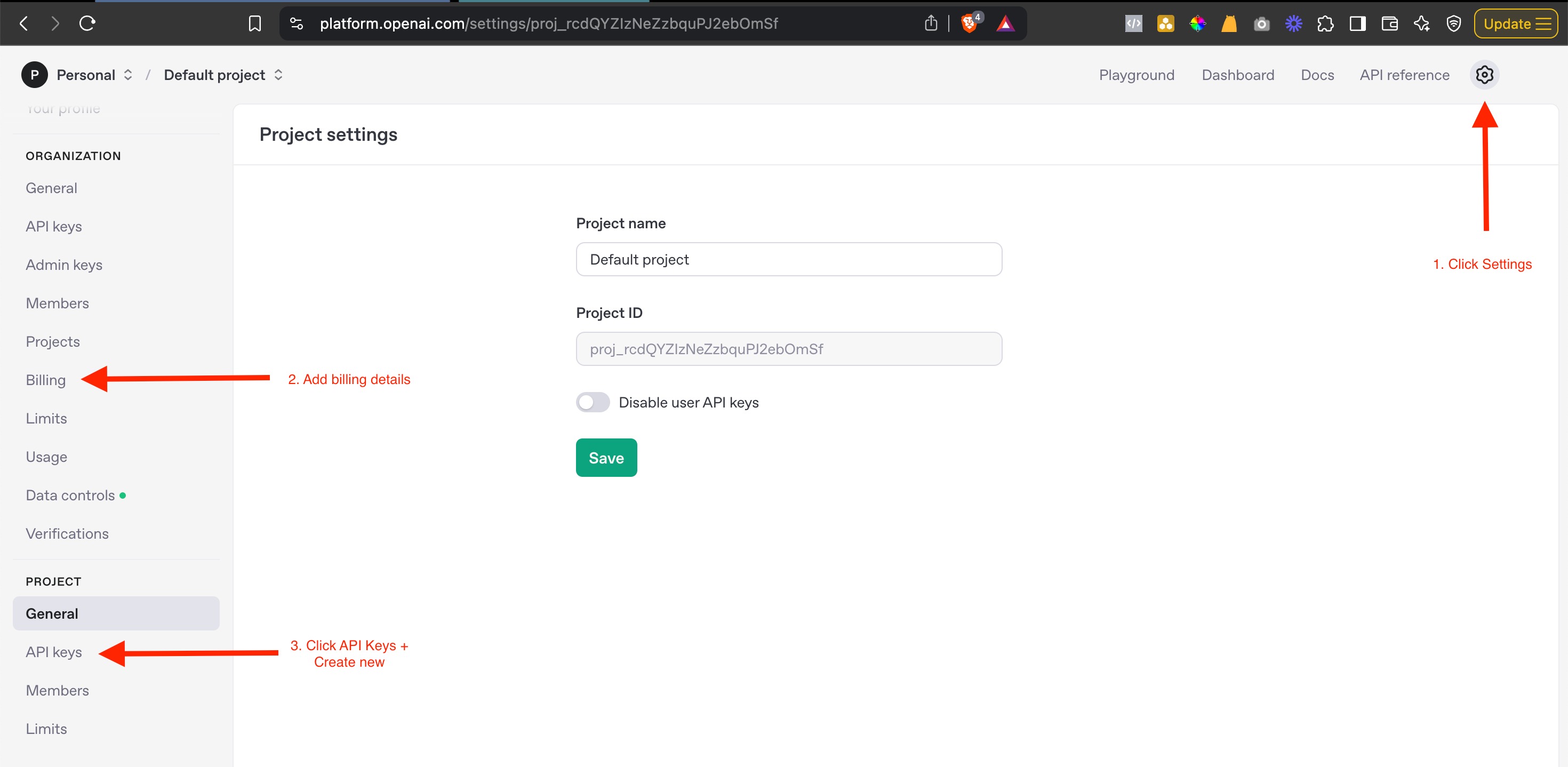
*Important: Ensure to enable auto rebilling for your API. If your balance falls into negative your AI Agents for your entire Agency workspace will not work.
3.2 Connect to your Stripe for Client Rebilling.
Once you connect your Stripe account this will allow you to rebill the subaccounts inside your workspace. If you have not Stripe integration, you cannot manage rebilling or rebill your clients.