Background & Purpose
This guide outlines how to manage synced sub-accounts within your workspace. It covers how to update account details, apply usage restrictions, adjust access levels, invite users, manage billing permissions, and configure rebilling. These actions are essential for effectively managing and customizing client accounts.
Step-by-Step Instructions
1. How to Login to the Sub-Account
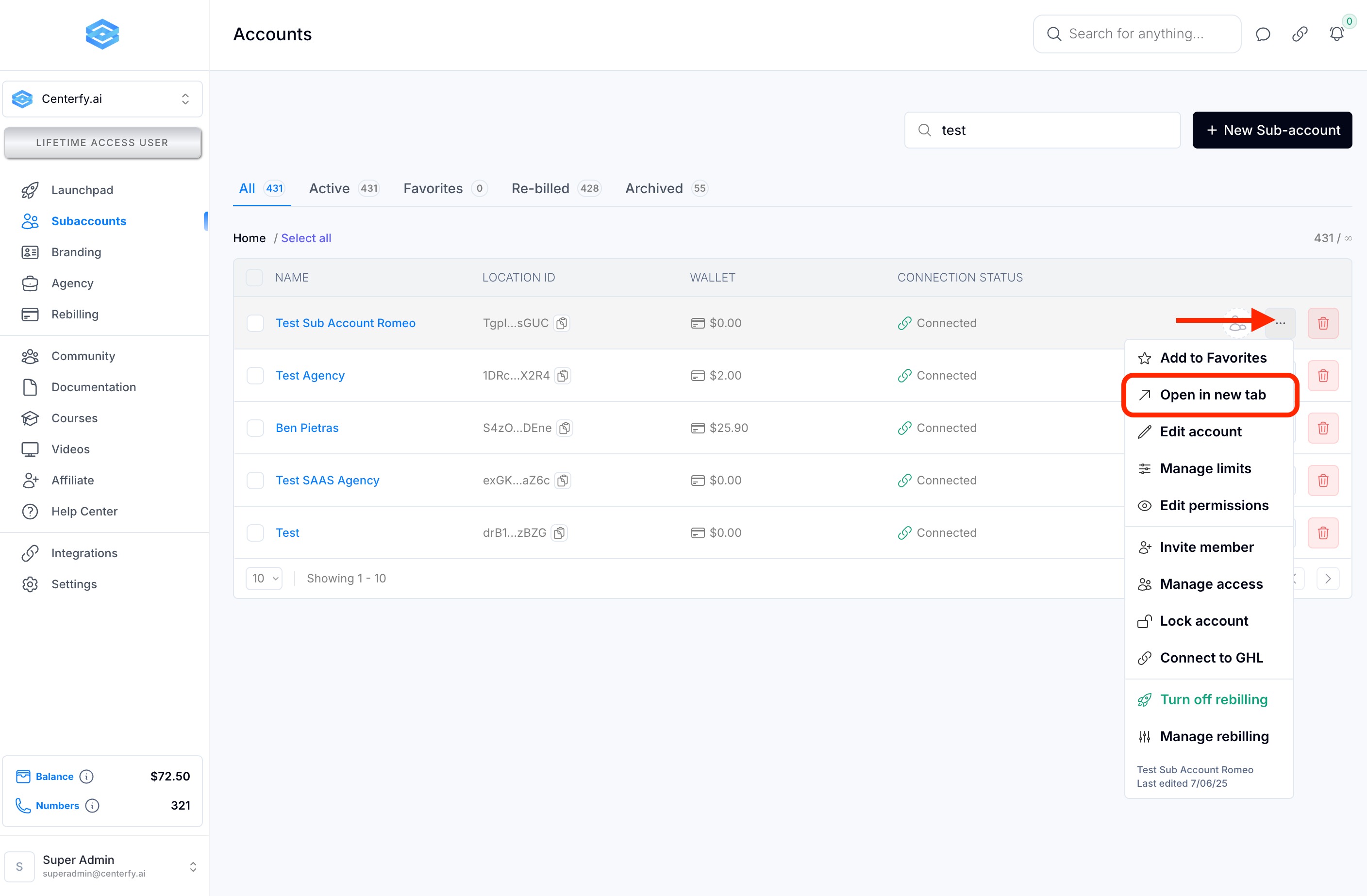
Find the sub-account you want to work with in your workspace.
Click the account name to launch it in a new tab using your custom white-label URL.
2. Update Sub-Account Details
Click the three-dot menu next to the sub-account.
Select “Edit Account.”
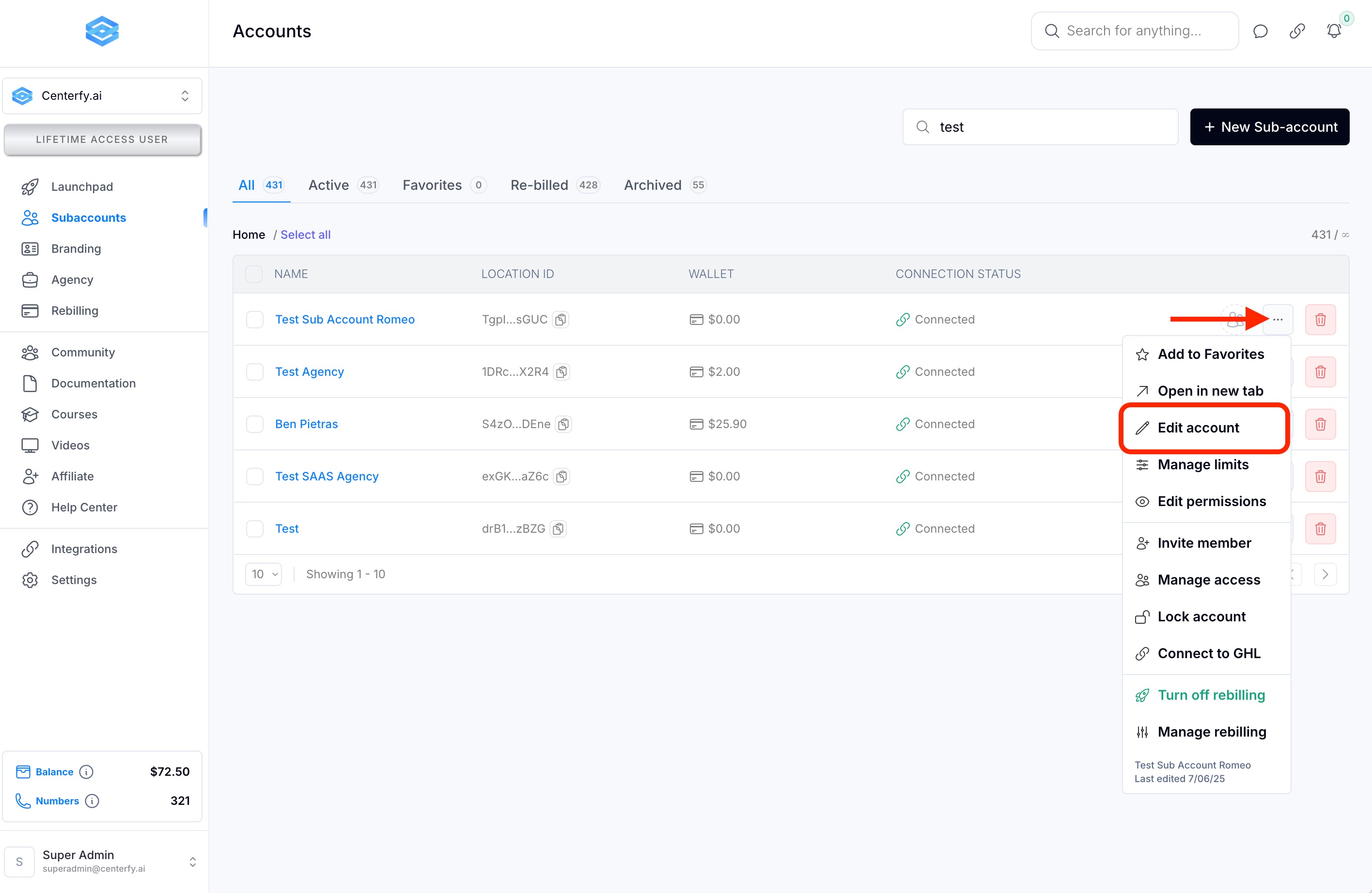
You’ll be able to modify:
The sub-account’s name
Email address
Phone number
Website
Time zone
This data is pulled from GoHighLevel during OAuth sync but can be manually changed.
Click “Save Changes” to apply your edits.
3. Apply Usage and Content Restrictions
Select “Manage Limits.”
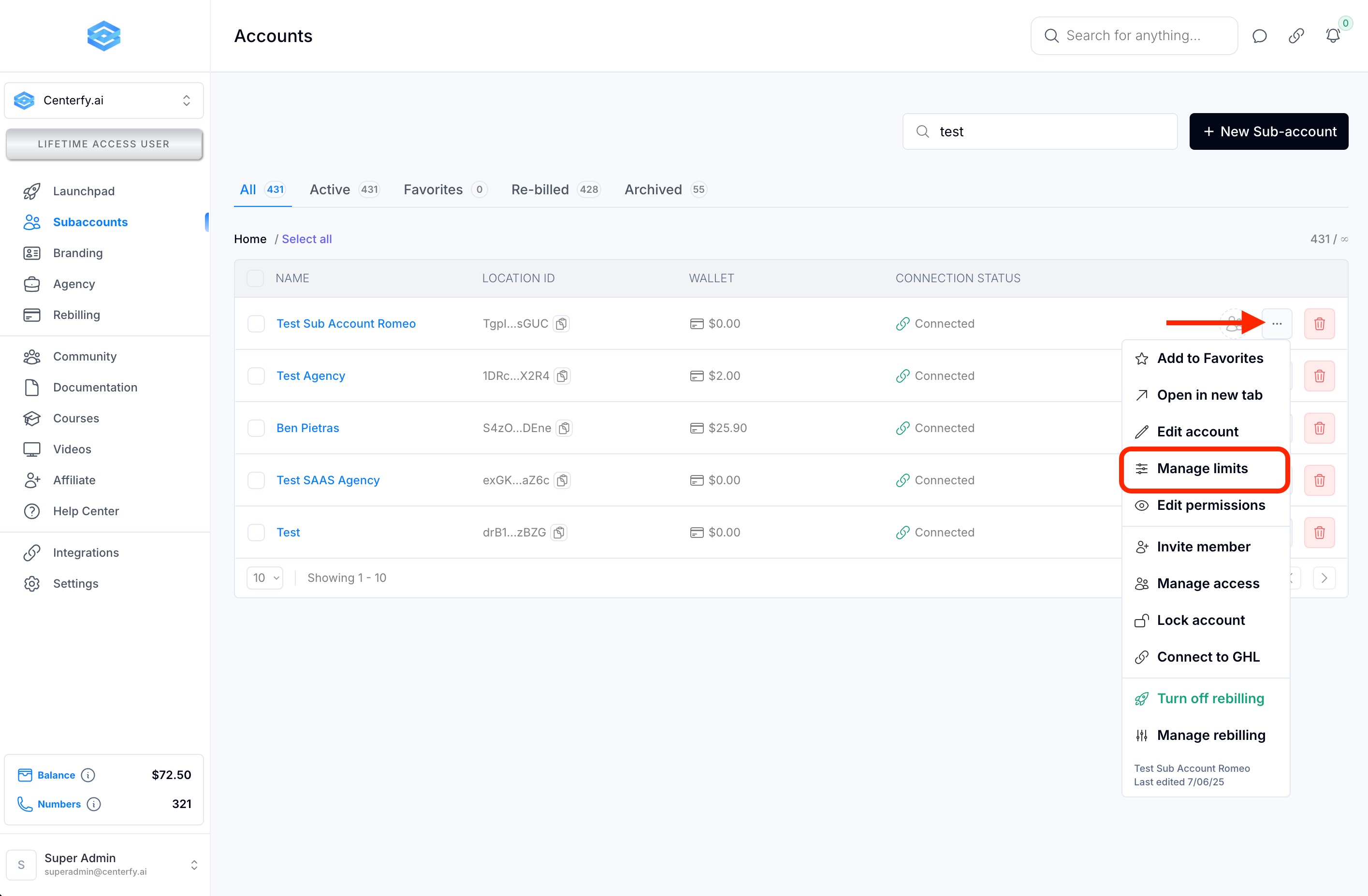
Here you can define limits for:
Number of systems
Phone numbers, and other items
Set limits based on plan type, or mark items as unlimited depending on the client’s subscription.
Use the Permissions area to control what tabs are visible to non-admin users.
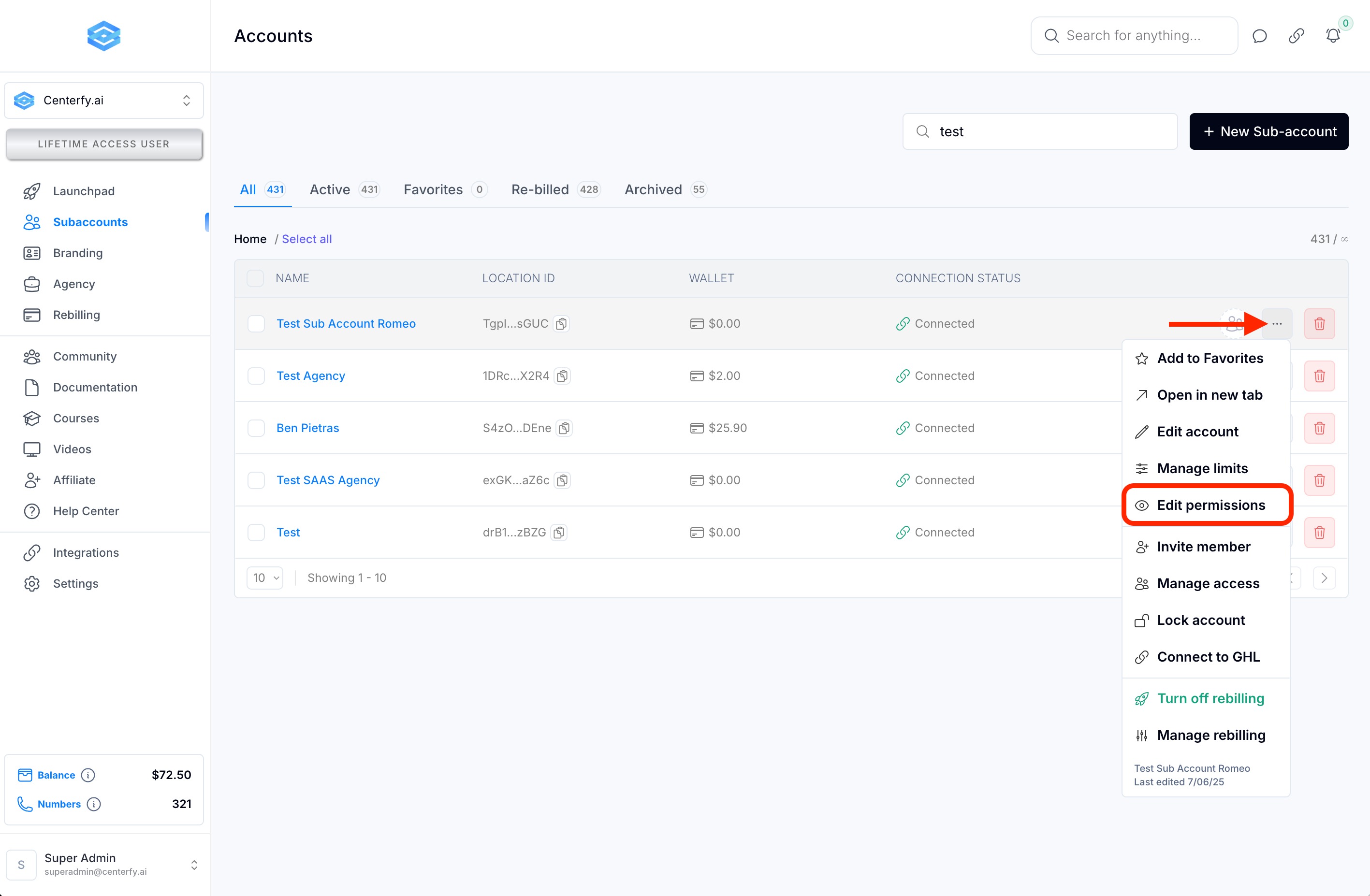
Admin users always see all tabs.
Unchecking a tab hides it from standard users.
Checking a tab ensures it’s visible.
Permissions work similarly to how snapshots function.
5. Add or Manage Users
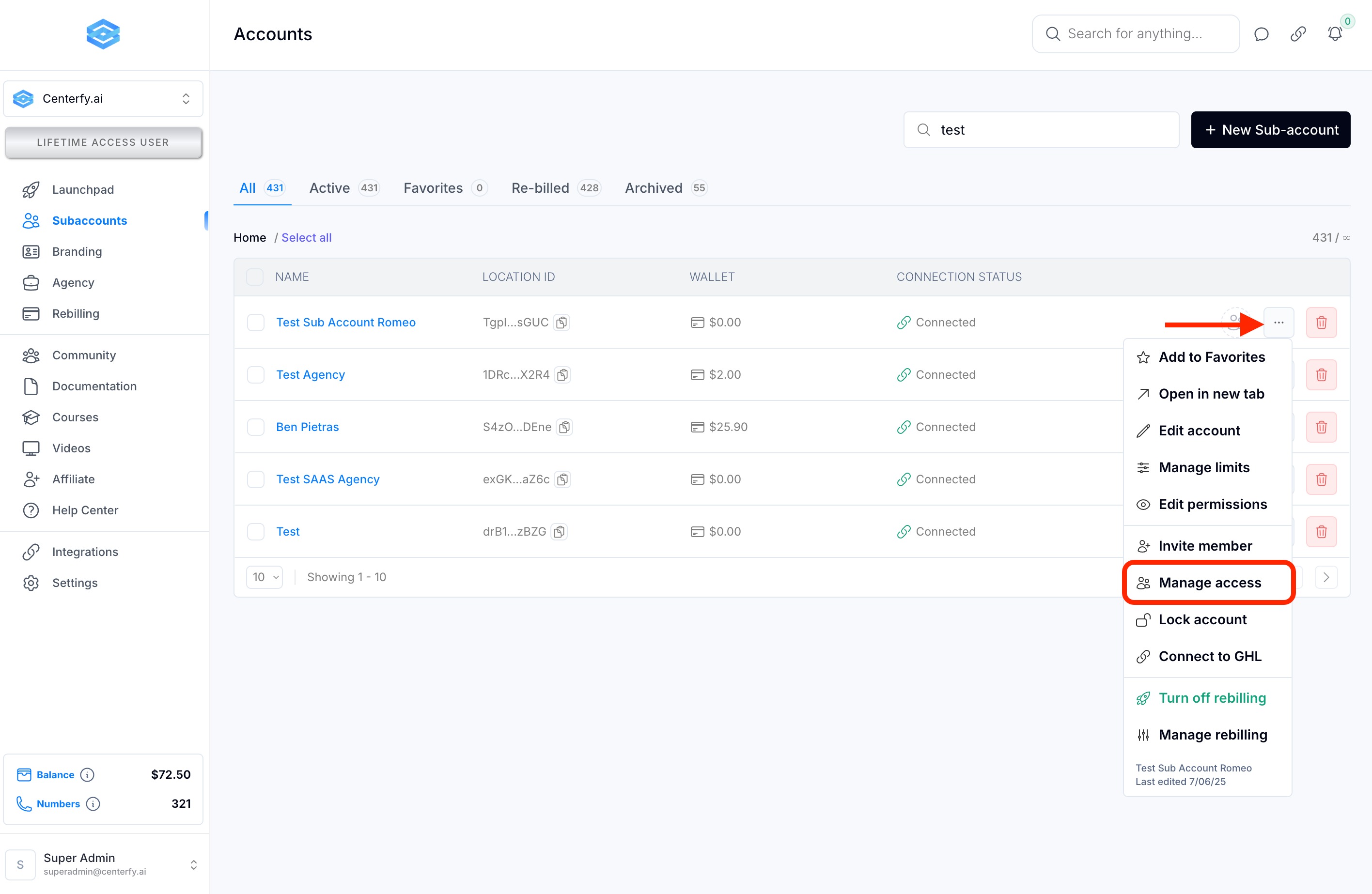
Click “Invite Member” or “Manage Access.”
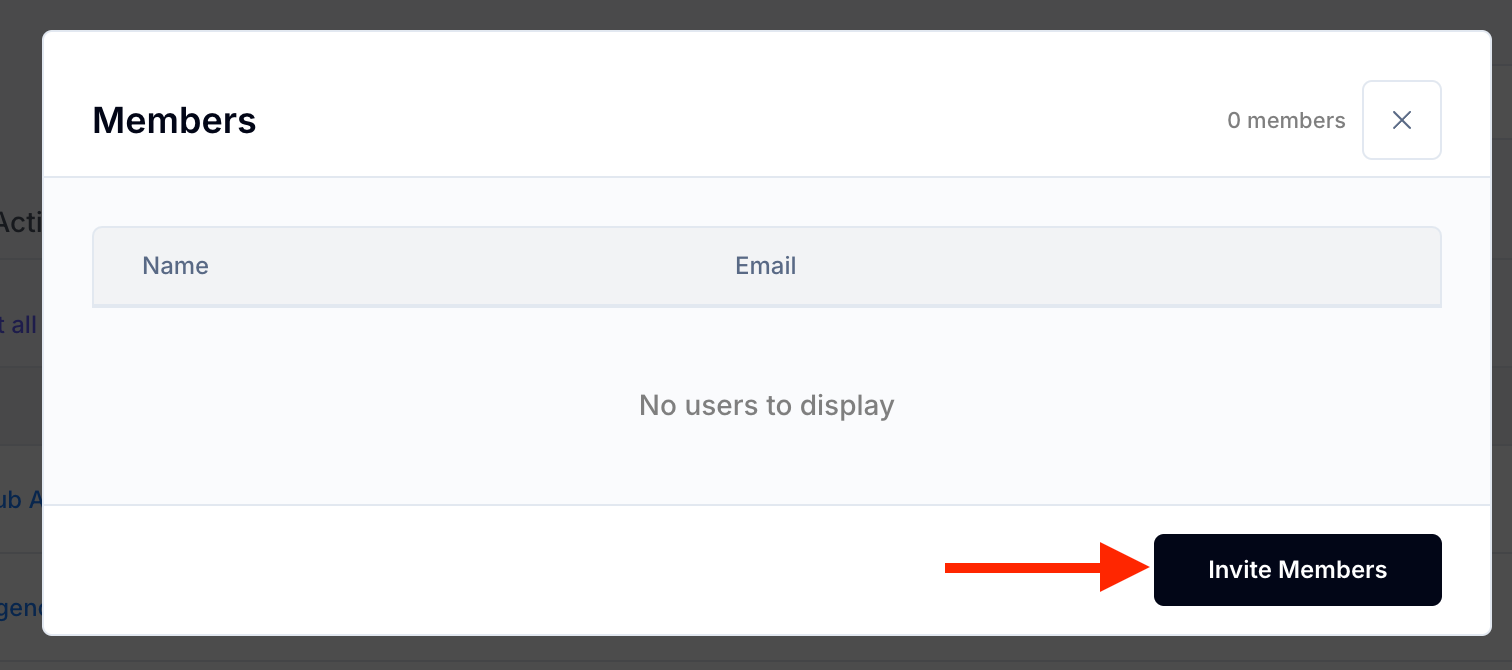
Invite by email:
If the email belongs to an existing user, they’ll be added.
If not, a new user profile will be created automatically.
This allows clients to access key features, including:
General settings
Billing management
Billing tab (only shown to authorized users)
6. Lock or Unlock a Sub-Account
Use the Lock/Unlock options to restrict access temporarily.
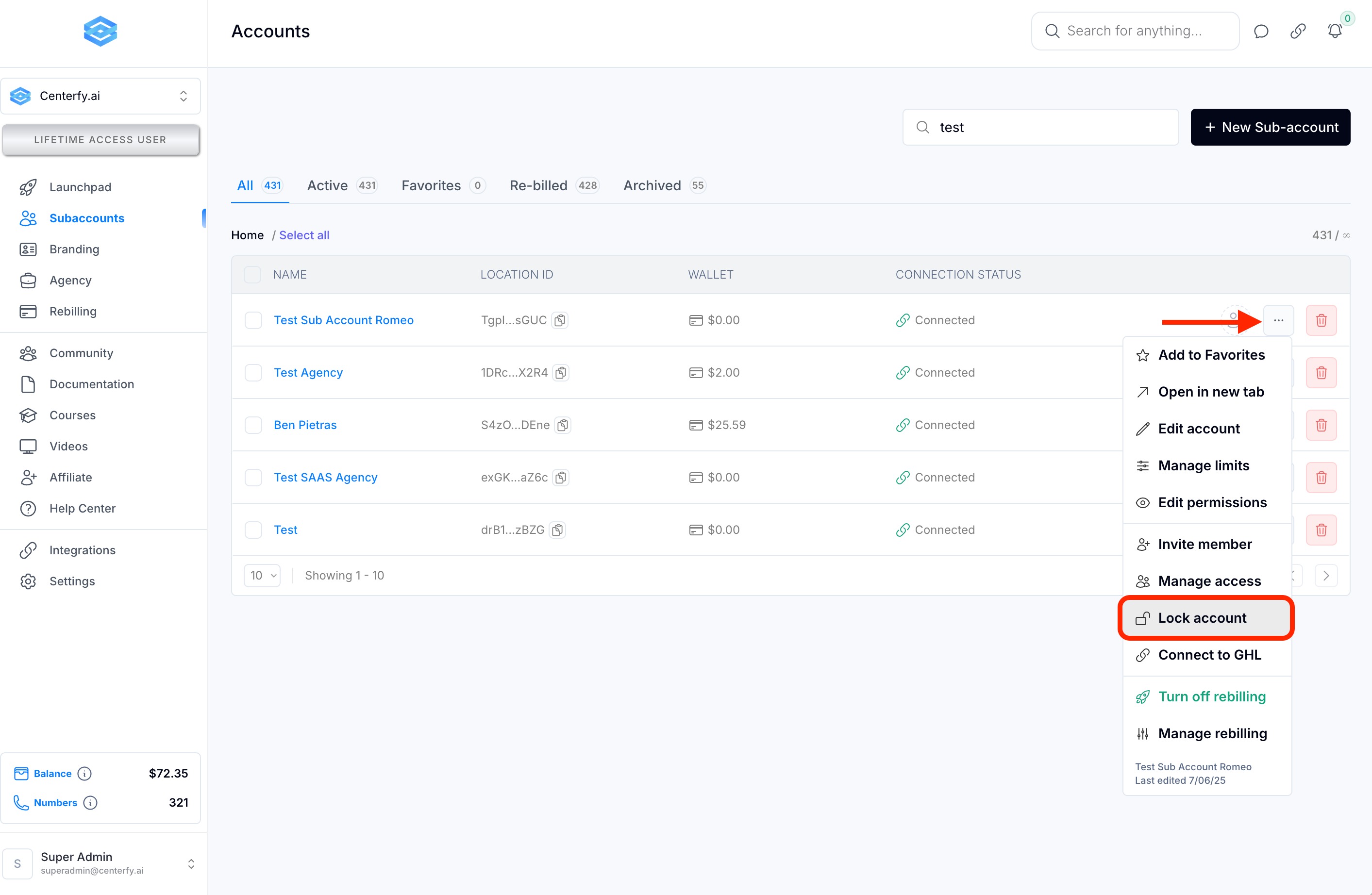
An admin password is required to toggle this.
Ideal for freezing accounts during disputes or non-payment.
7. Restore or Update GHL Integration
If the GHL connection is lost or broken:
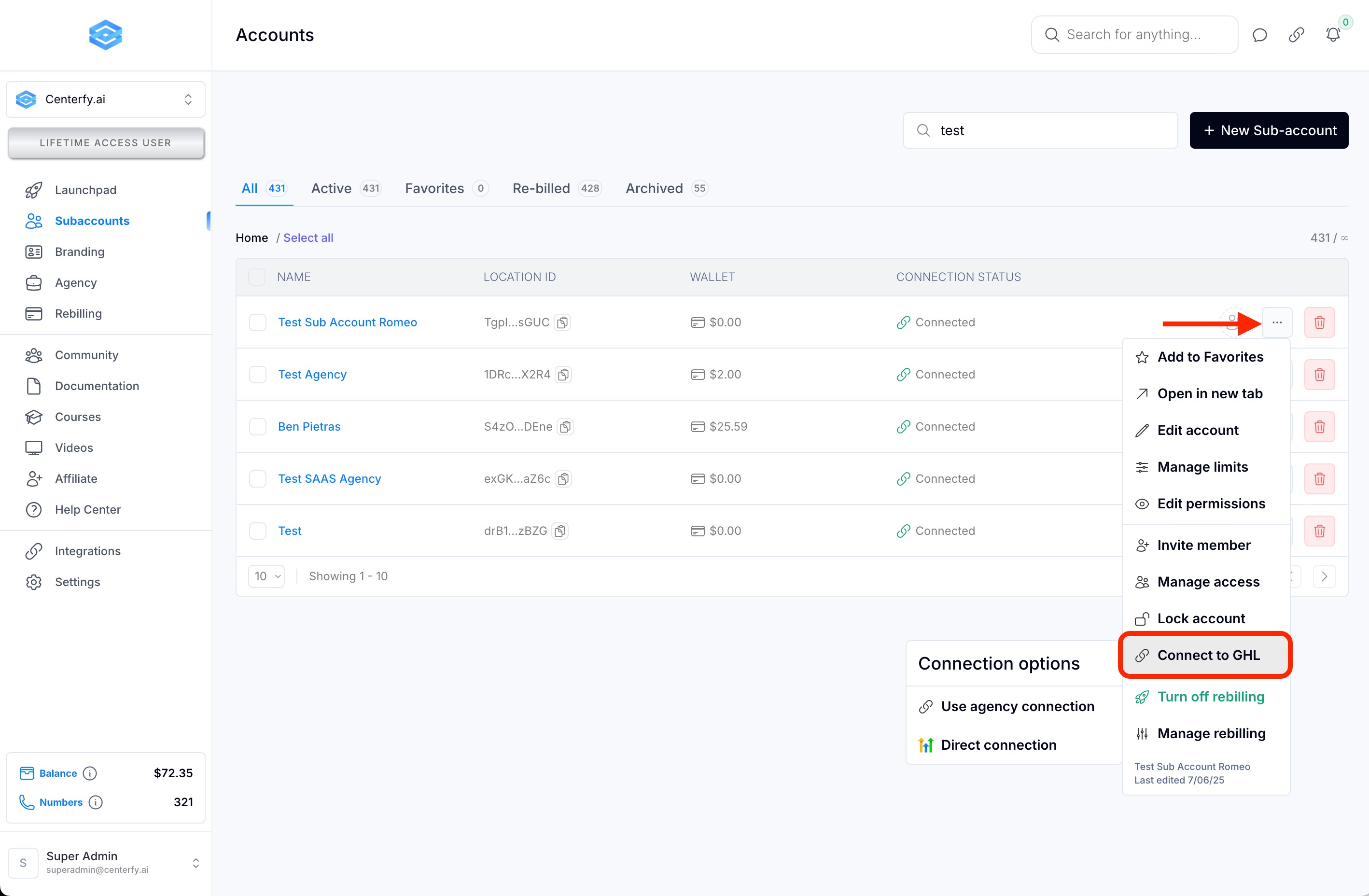
Use “Use Agency Connection” to refresh via your main OAuth.
Or click “Direct Connect” to reauthorize the sub-account manually using a new oAuth permission
8. Enable and Configure Rebilling
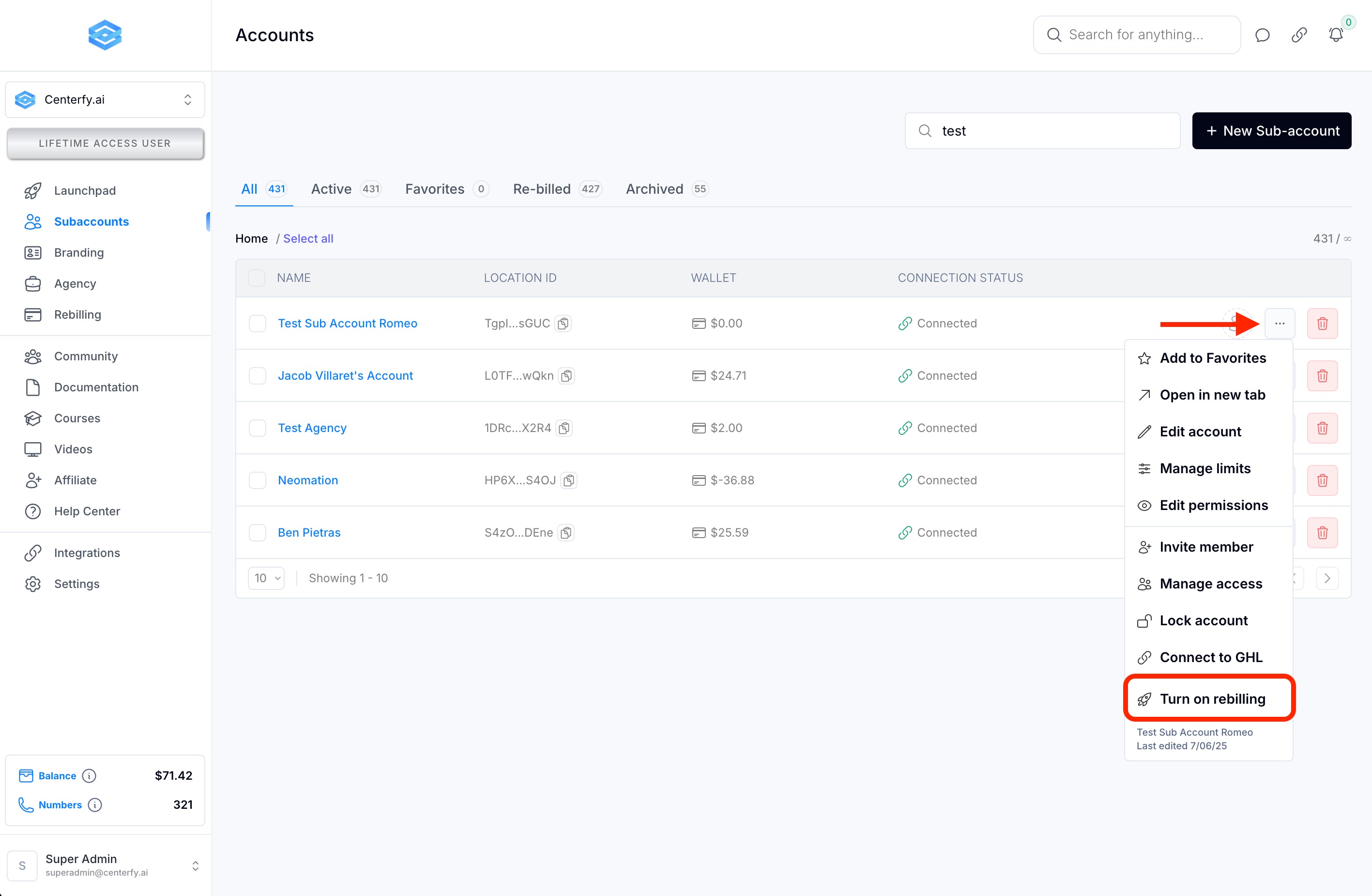
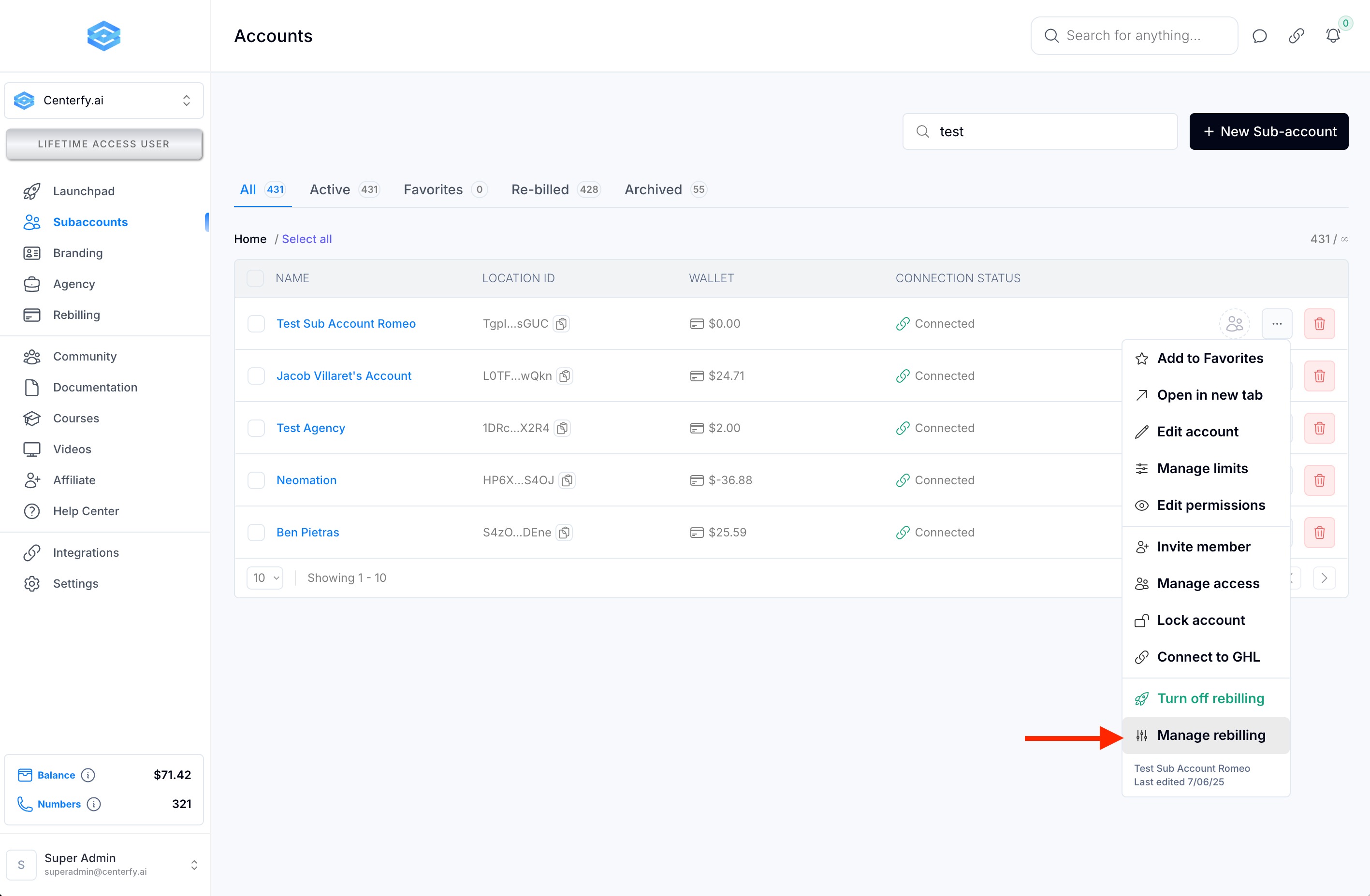
Sub-accounts with billing set up will display a credit card icon. A stripe connection in your workspace must be present for you to enable (or view) this option.
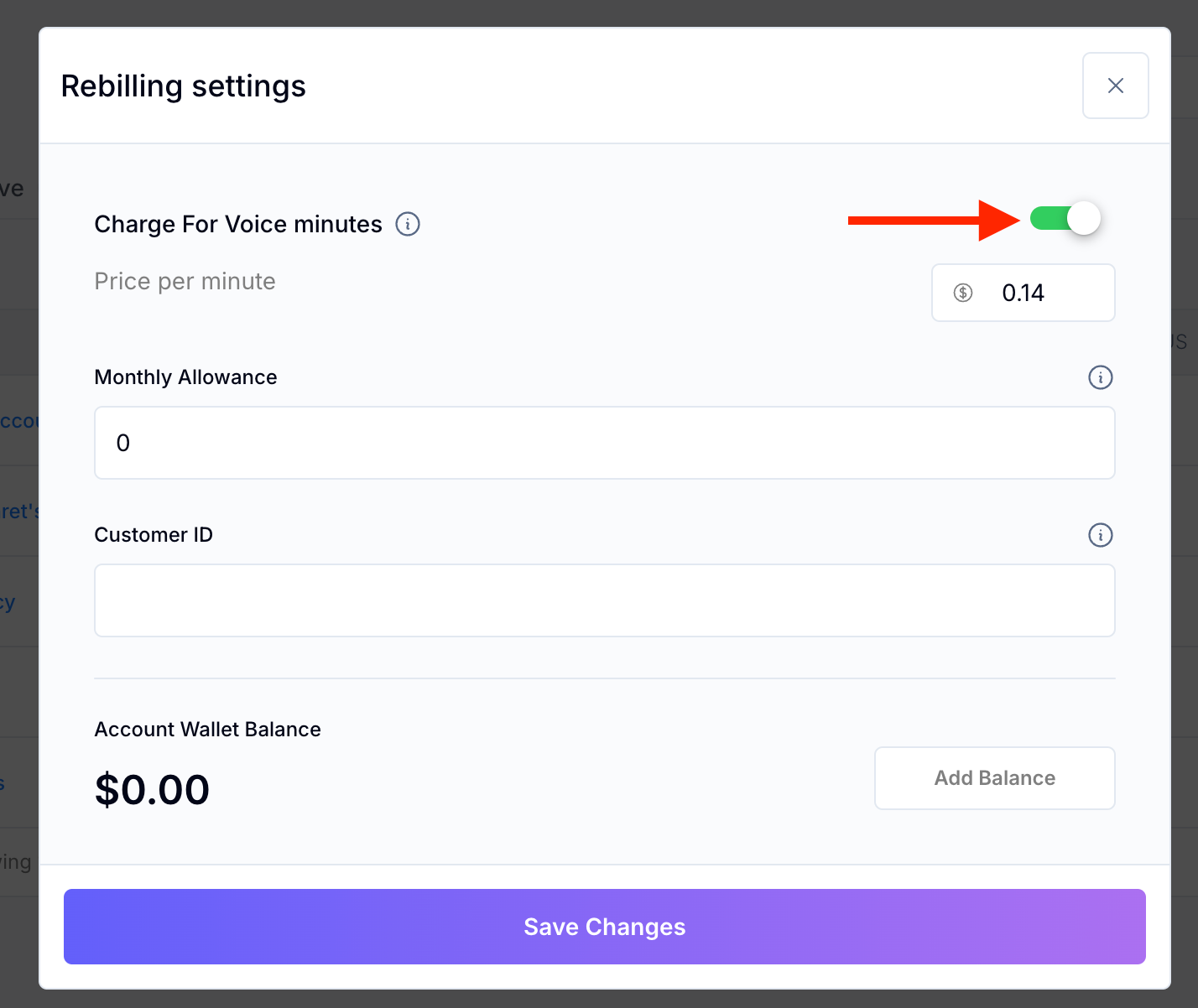
Click “Manage Rebilling” to:
Turn rebilling on
Set markup on rebilling pricing for usage (e.g., voice minutes)
Fund wallet balances or set monthly allowances
Assign a Stripe customer ID (if you already have it in your GoHighlevel or Stripe account.
FAQs
Q: I don’t see the billing tab. Why?
A: Check your stripe integration is active
Q: What if a sub-account account limits?
A: Certain features may stop working. You’ll need to update the limits or upgrade the plan.
Q: How do I hide tabs from clients?
A: Go to the Permissions tab and uncheck the items you want hidden from non-admin users.
Q: What does “Monthly Allowance” do?
A. This will allow you to give you client included minutes in their plan, at the start of each month.